How to Export a Project in Buildmate
Export your projects and tasks from Buildmate in different formats - Excel (.xlsx) or CSV (.csv). Once exported, you gain the ability to download all crucial project data, including tasks, comments, statuses, and custom fields, and view these vital insights in a versatile file format - all in one easy process.
Prefer a video walkthrough?
Follow along with our video walkthrough below 👇
1. Select project
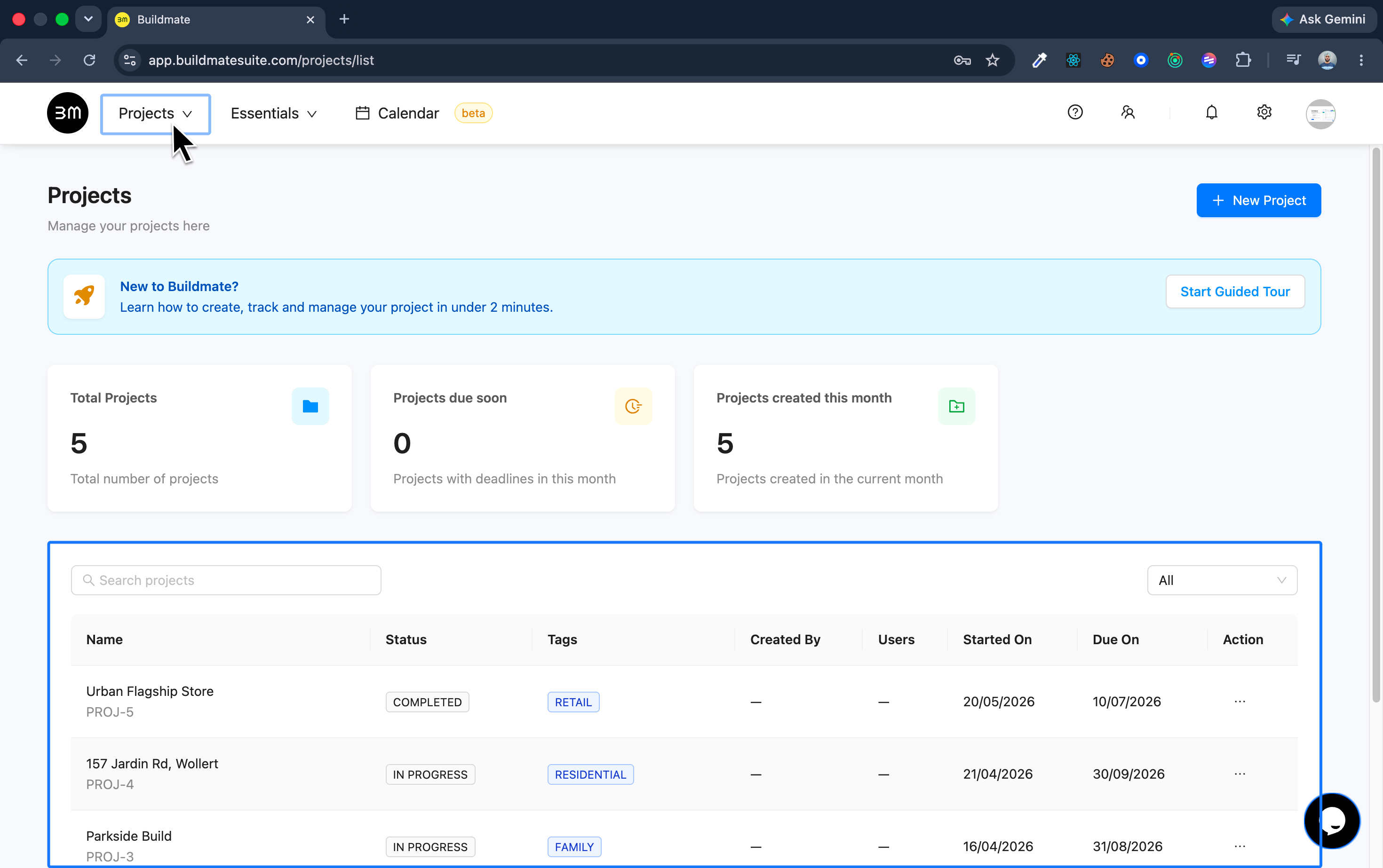
- Navigate to Project Dashboard and start by accessing your project list.
- Locate the project you want to export and Click on the name of the specific project (e.g.,
157 Jardin Rd, Wollert) to view its details.
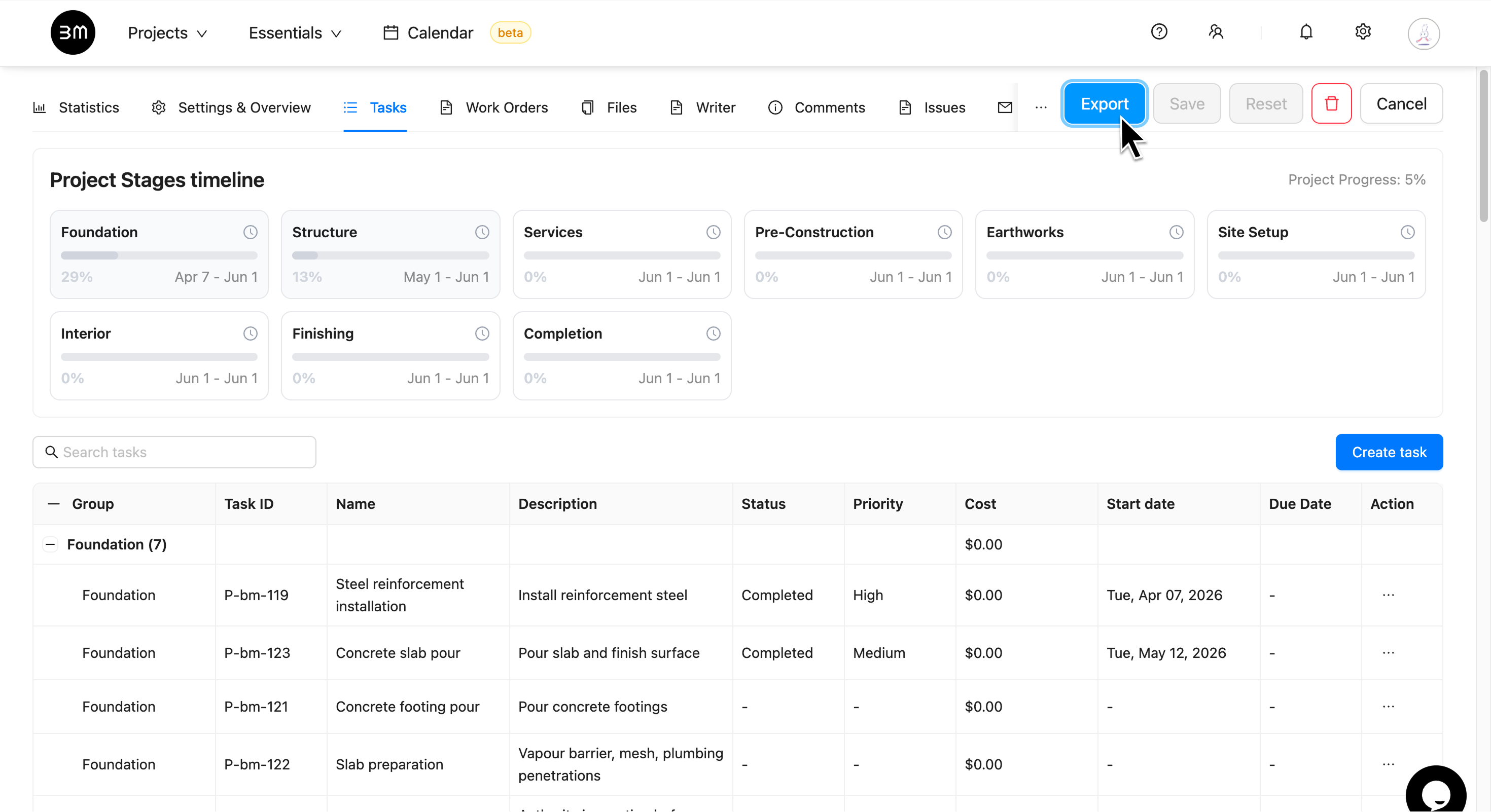
2. Open your project and Initiate export
Once the project details screen loads, find and click the Export button at the top right.
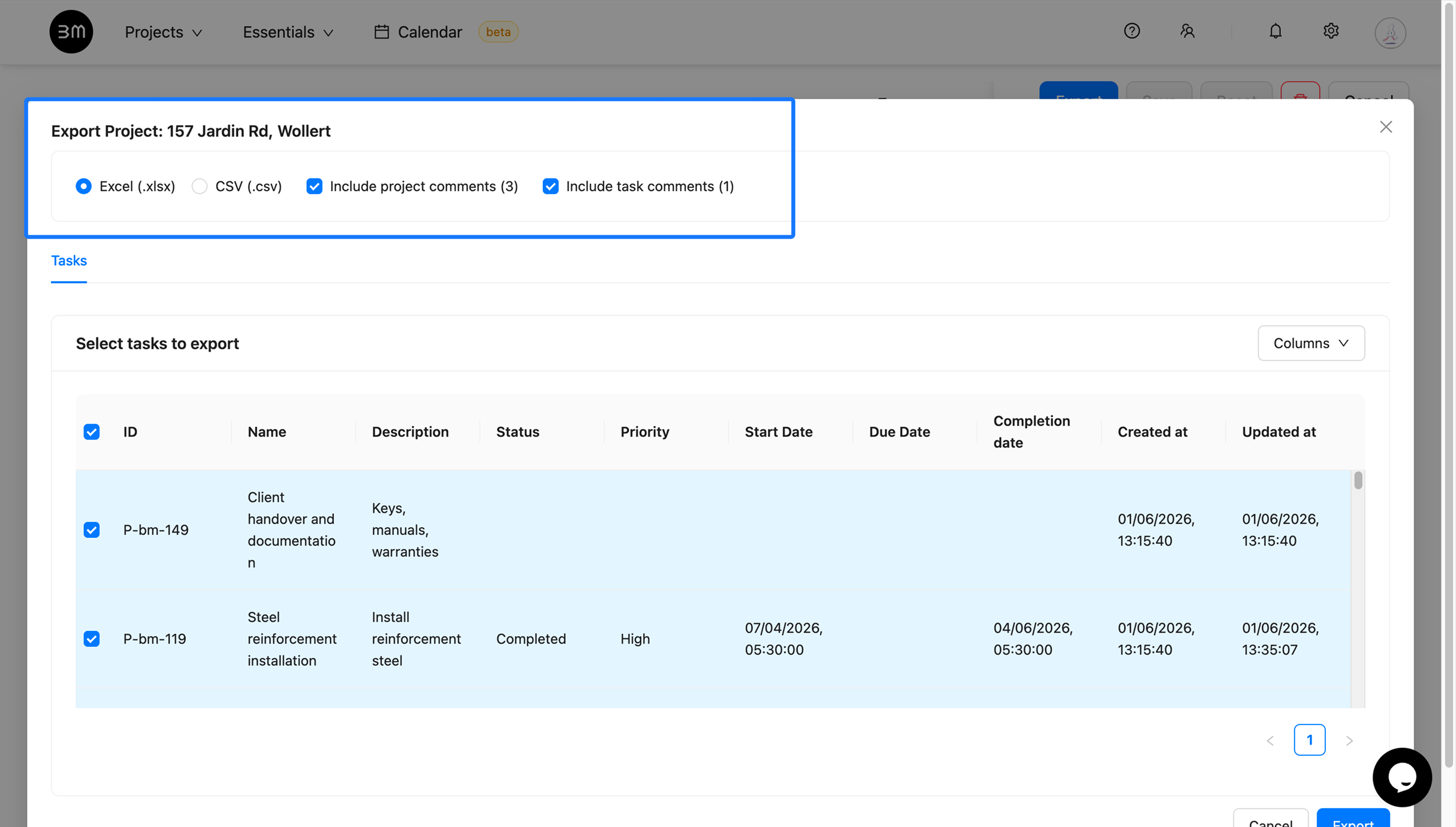
3. Configure Export options (Format, comments)
A pop-up window will appear where you define the file structure and content.
- Select Format: Choose your preferred file type: Excel (
.xlsx) or CSV (.csv). - Include Comments (New): Check the boxes if you need the full context from discussions:
- Include project comments: Exports general notes and high-level discussions related to the entire project.
- Include task comments: Exports specific, actionable discussion logs related to individual tasks.
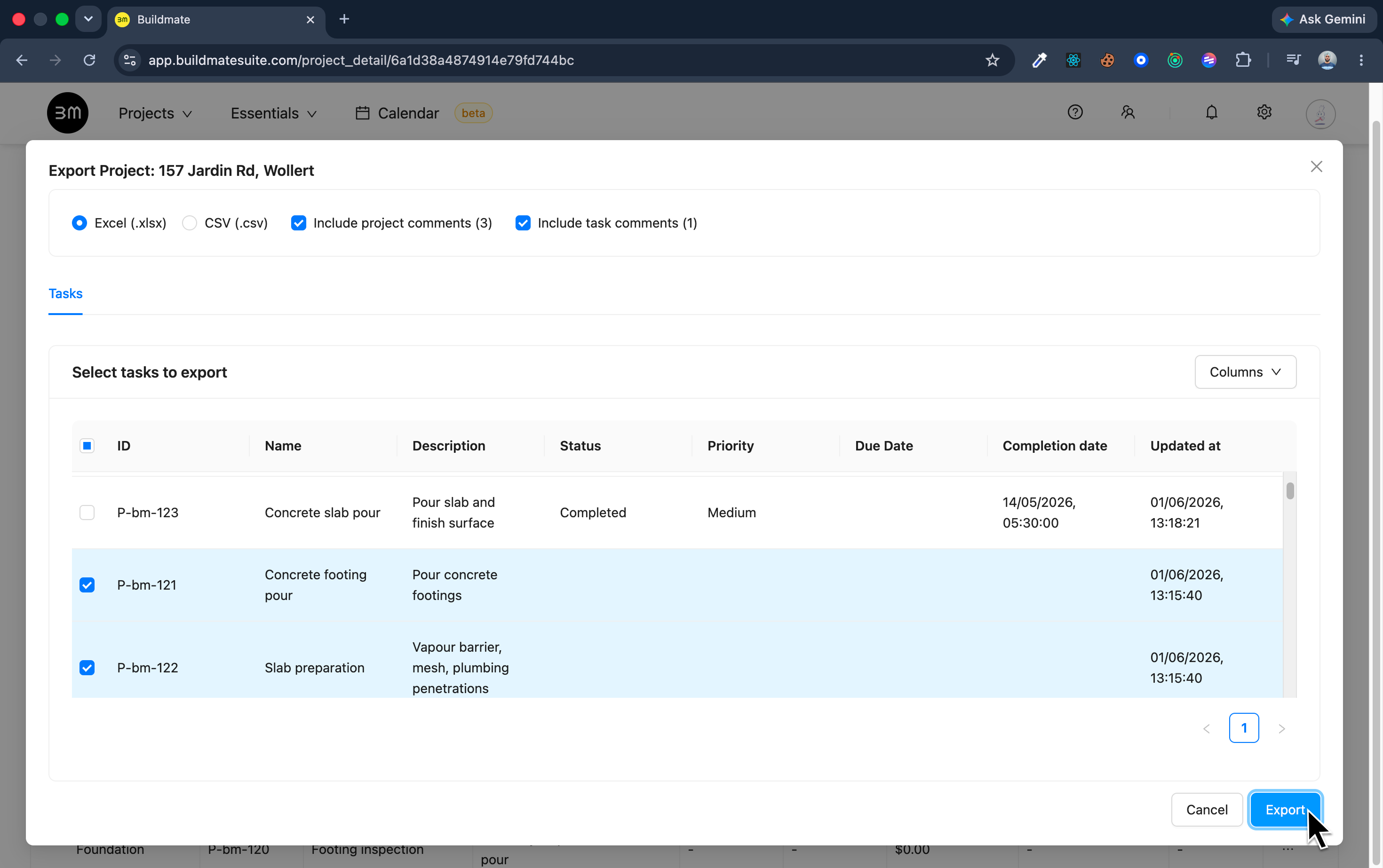
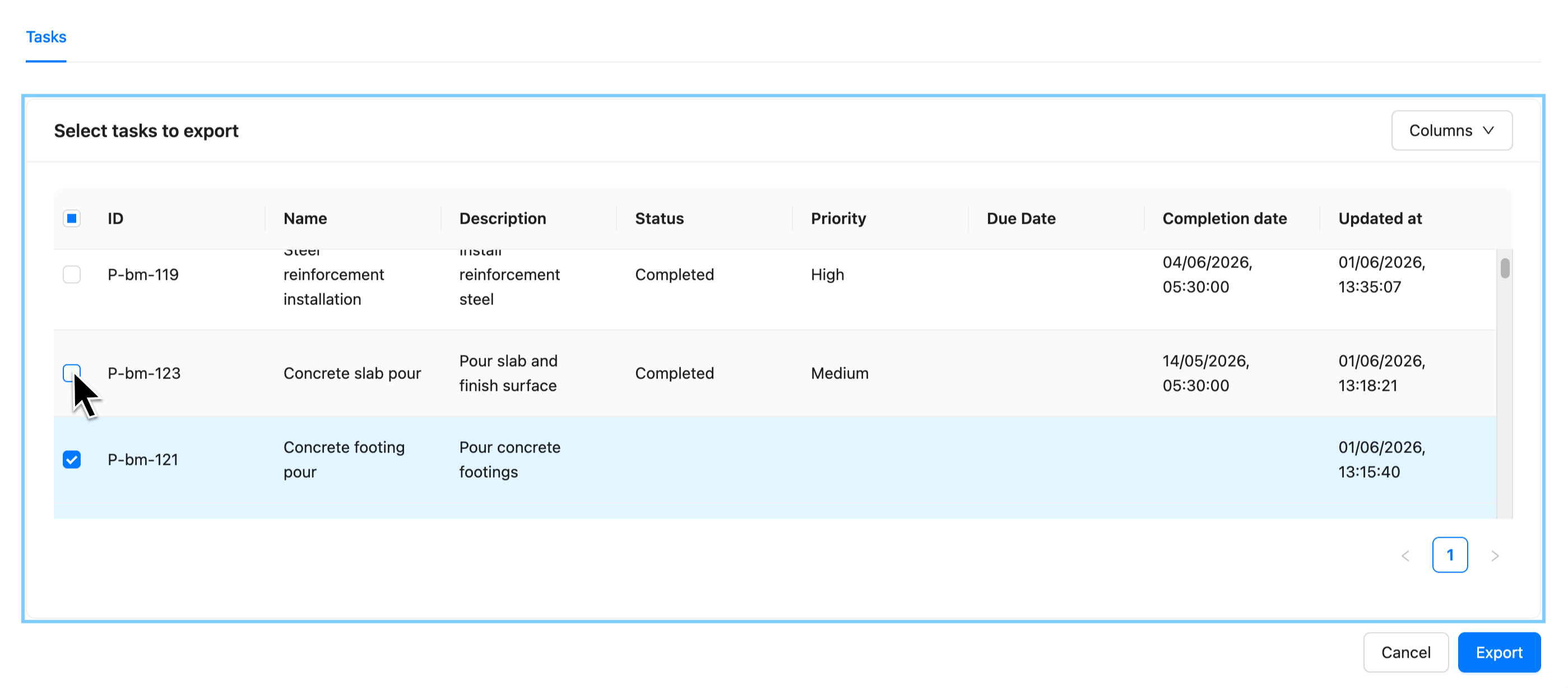
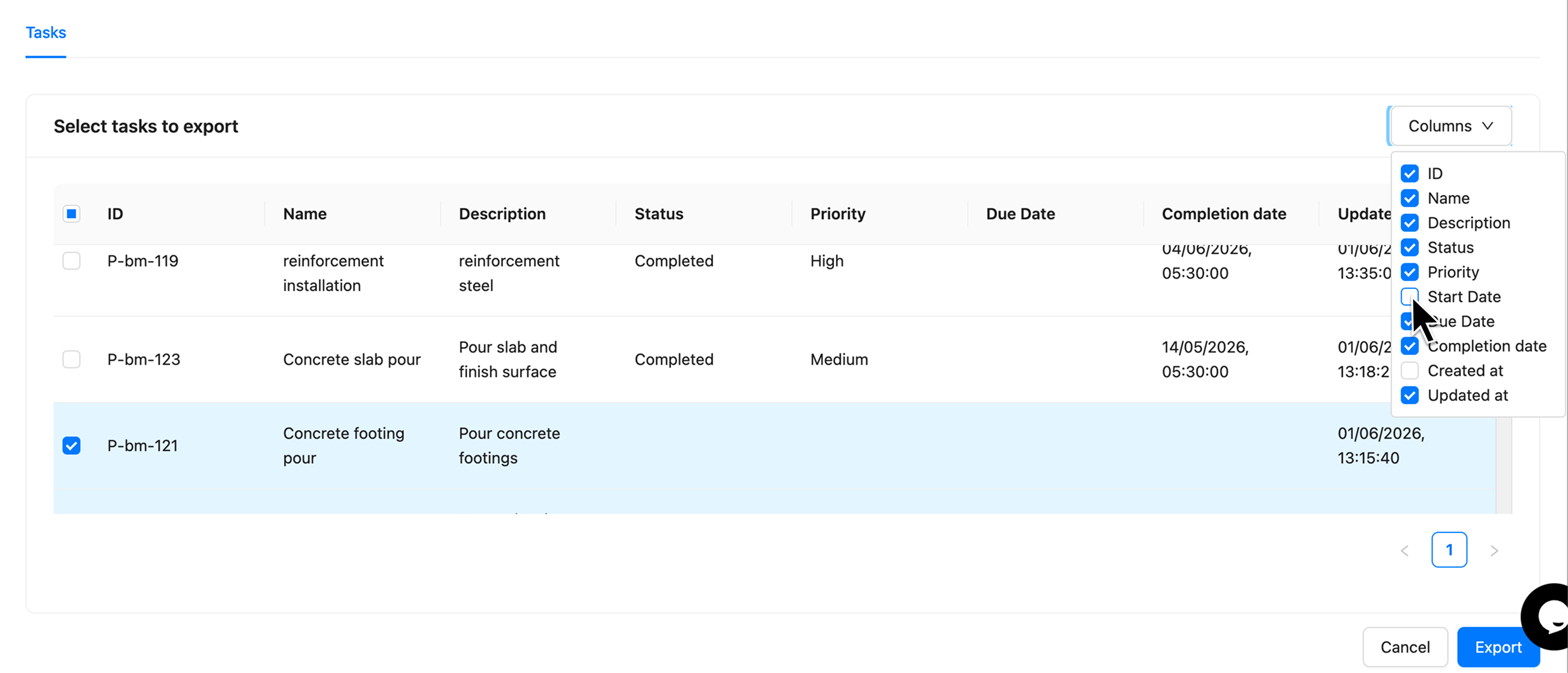
4. Select Tasks and customize columns
Now, choose exactly which data (tasks and columns) will be included in your file.
- Select Tasks: Check the box next to each specific task you want to include in the export. You can quickly select or deselect all tasks using the main checkbox in the header.
- Customize Columns (optional): Check or Uncheck the fields (e.g., Status, Priority, Start Date) to include or exclude them from your final exported file.
5. Download the File
After configuring your data, complete the process and review your exported file.
- Click the final Export button at the bottom right.
- The file will download directly to your computer. Open the downloaded file (e.g.,
157 Jardin Rd, Wollert-details.xlsx) to confirm all selected tasks and data are present.
Your project data is now successfully exported and ready for external use or safekeeping!