
Managing your project execution scope should be as structured as tracking your timelines. Introducing a complete Work Order Workflow allowing you to manage the entire lifecycle of subcontractor agreements & timelines directly within Buildmate.
You can now create a Work Order, refine the scope, and keep the full approval flow organized in one place. And when you need help getting started, the Integrated AI handles the heavy drafting for you.
1. Access the Work Orders Dashboard
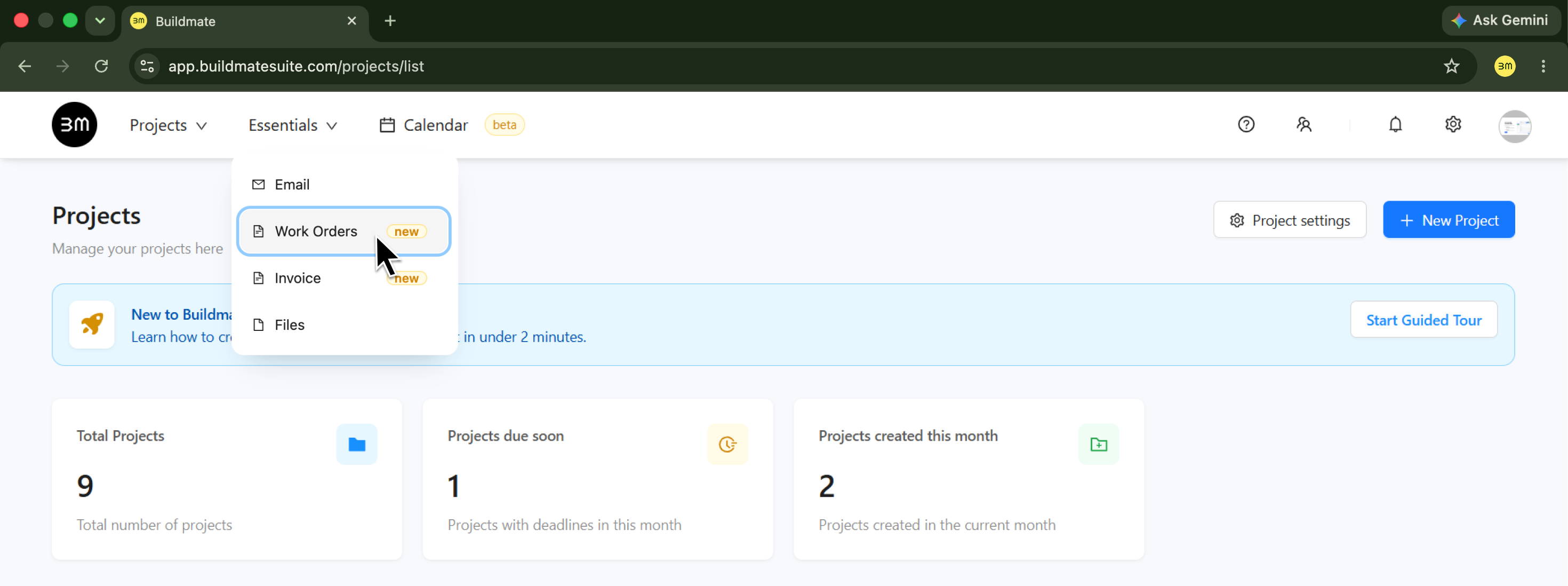
- Navigate to the Essentials dropdown in the top navigation bar and select
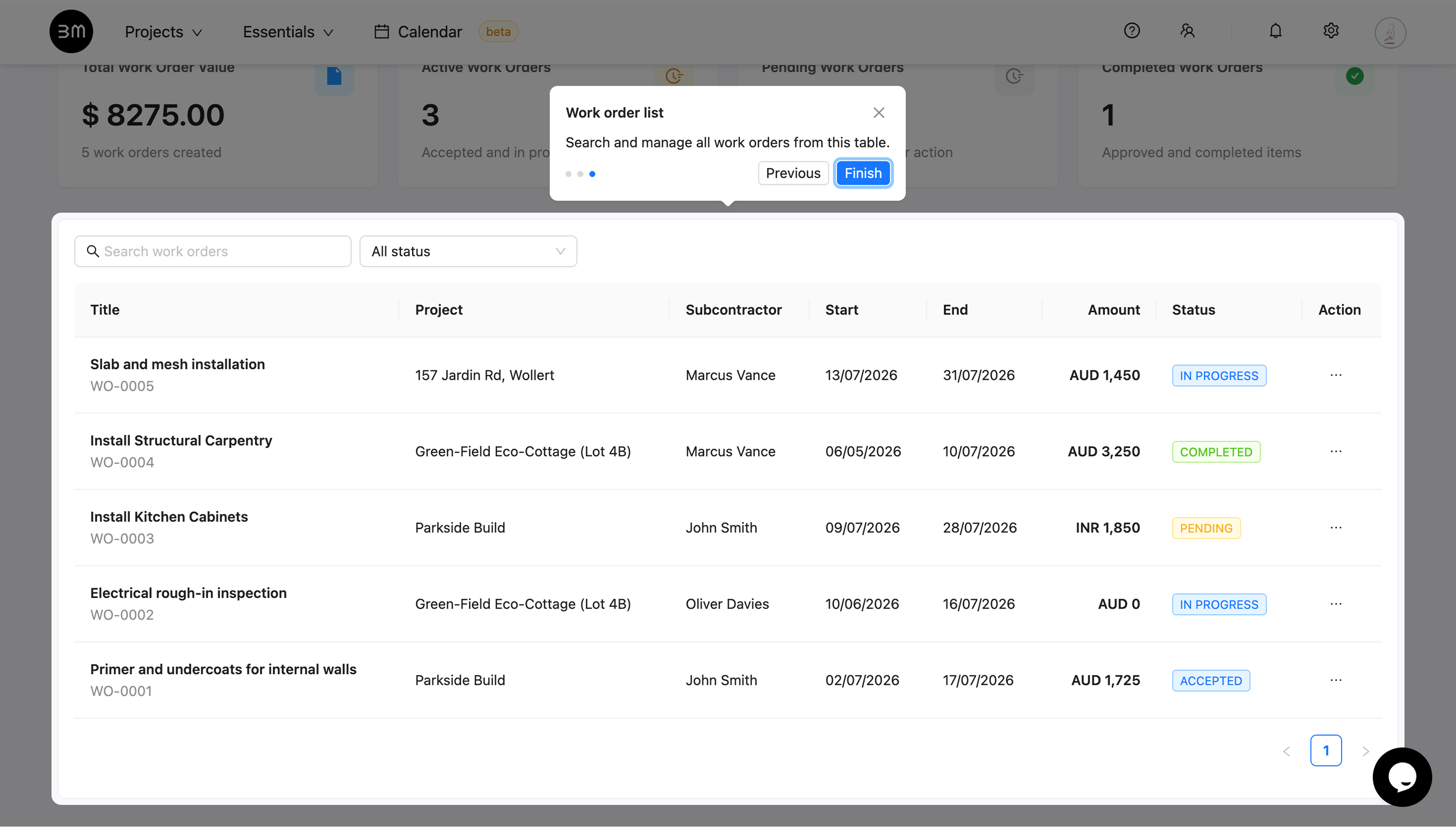
Work Orders. - This is your operational command center, giving you a quick overview via metric cards and a comprehensive Work Order Listing to view, search, filter, and track statuses in one place.
Understanding Work Order Metrics
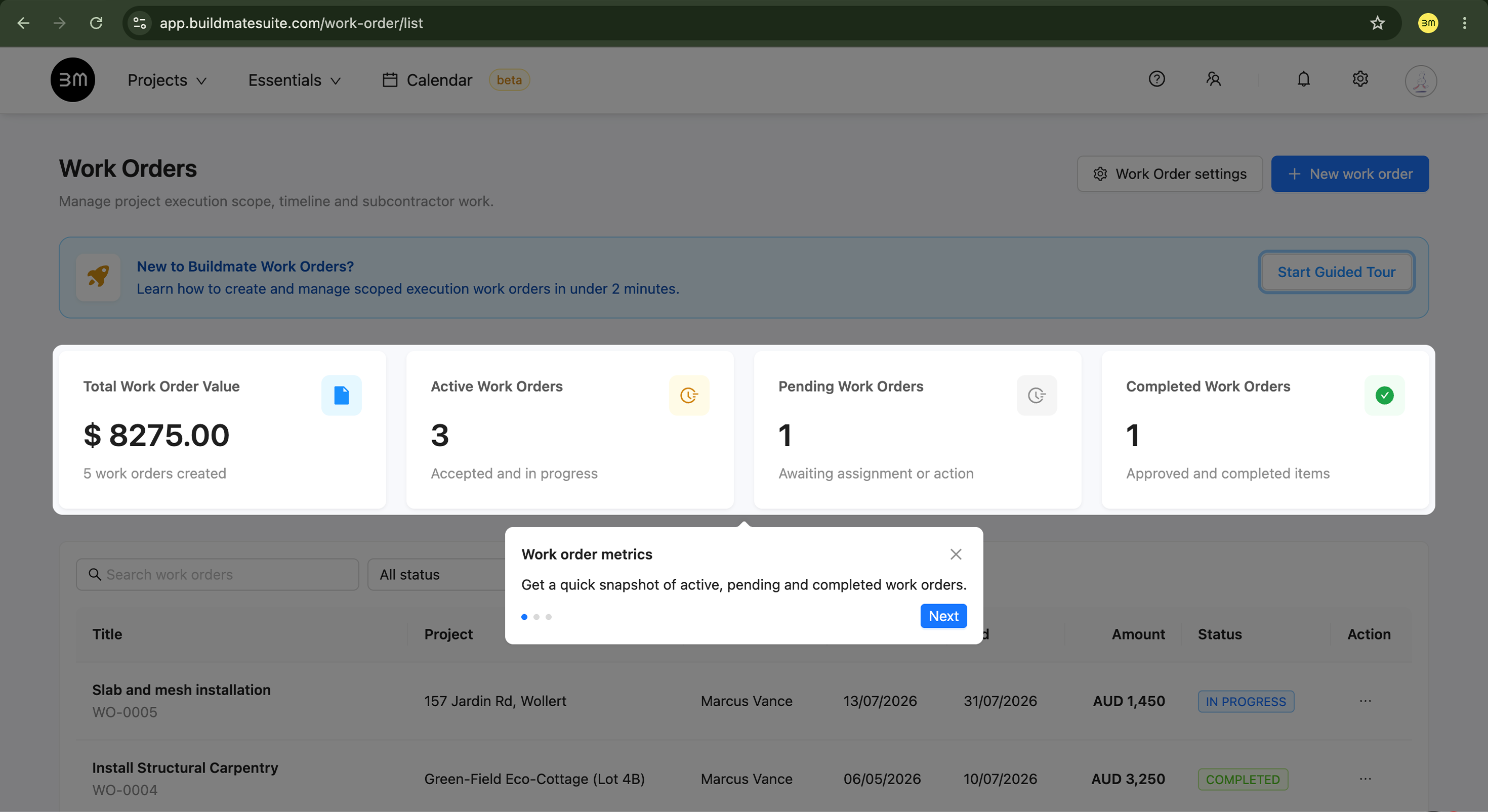
Your dashboard metrics give you a clear picture of subcontractor work that is moving, waiting, or completed, so nothing gets missed.
- Total Work Order Value: View your aggregate committed budget across all created work orders.
- Active Work Orders: Monitor jobs that are accepted and actively in progress on-site.
- Pending Work Orders: Instantly spot contracts awaiting subcontractor assignment or approval.
- Completed Work Orders: Track approved, completed items that are ready for final sign-off.
2. Create a New Work Order
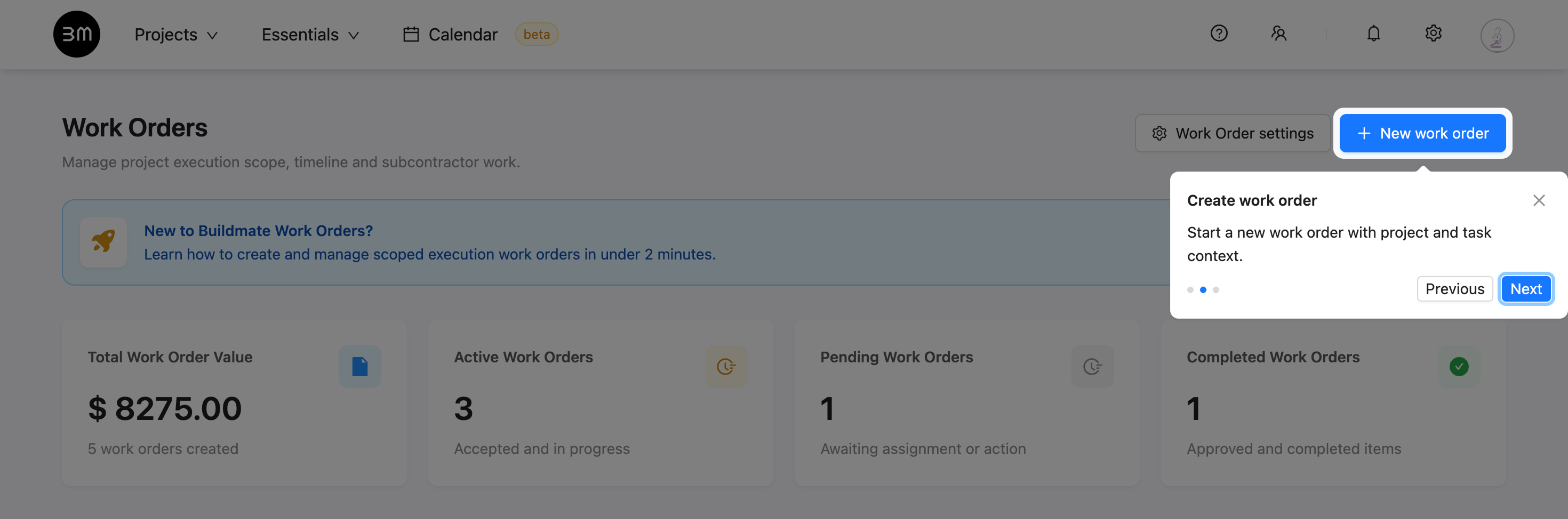
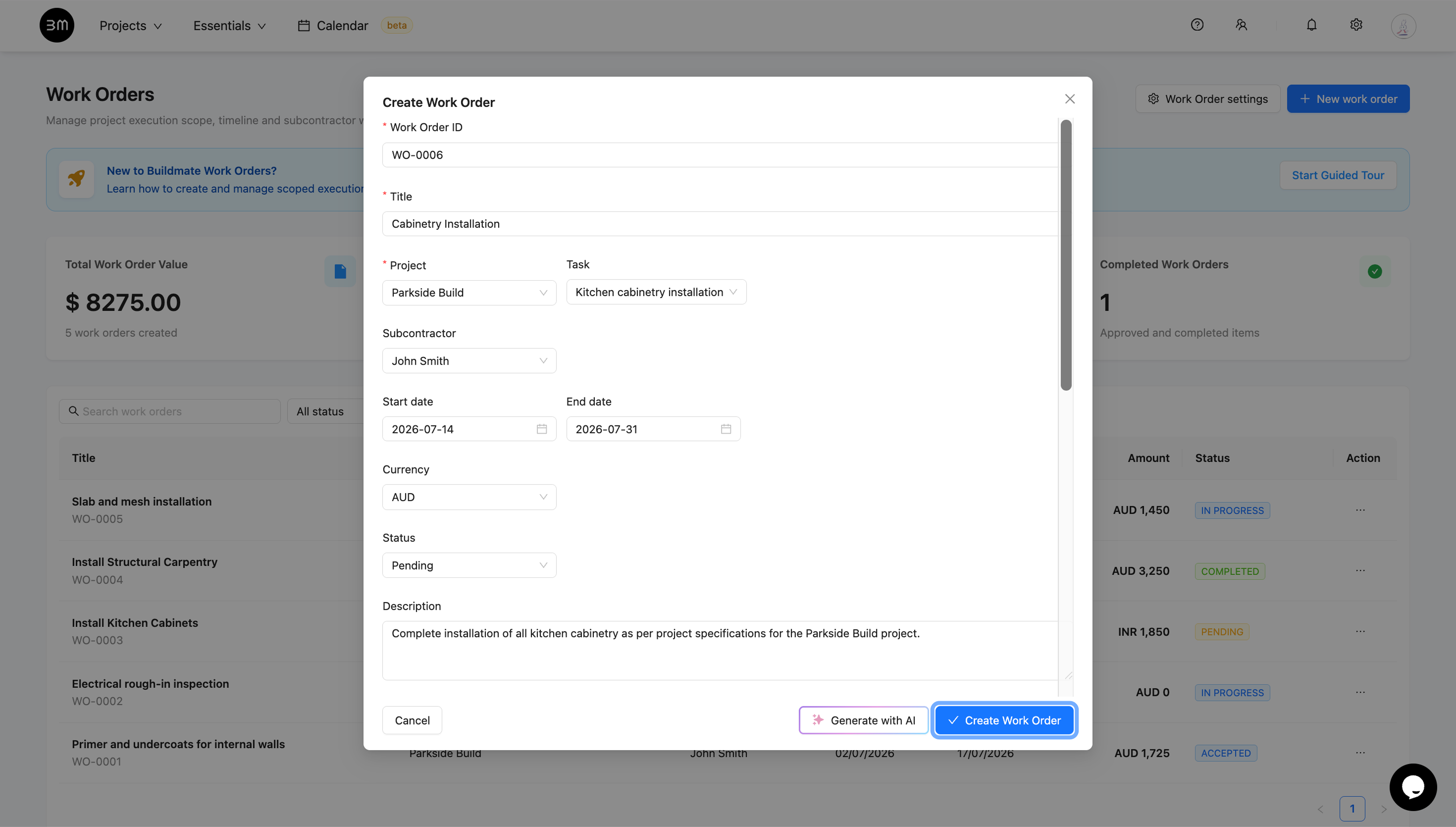
To issue a new job assignment, click + New Work Order button at top right. A modal will appear where you define the project parameters and operational details:
- Identity: Check the auto-generated Work Order ID (customizable via the Work Order settings) and provide a clear title for the assignment. (e.g., Cabinetry Installation).
- Project Context: Link the Work Order to the right project and a corresponding task so the scope stays aligned with the job.
- Subcontractor Assignment: Select the service provider or trade professional assigned to the contract.
- Schedules & Currency: Set your projected Start date and End date. Choose your billing Currency (e.g., AUD) and set the current contract Status (defaults to Pending).
- Scope & Terms: Add the work that needs to be completed, along with any notes or instructions that the subcontractor should see before starting work.
- Bill of Quantities (BOQ): Click
+ Add BOQ itemto build your cost breakdown. Enter the item name, Qty, Unit, and Rate. Buildmate dynamically calculates the item totals and updates the overall Total amount.
3. Use AI to Draft the Work Order
When you need a fast first draft, simply select the Project and Task fields and click Generate with AI at the bottom of the modal.
Buildmate uses the details already available in your project or task to help draft a clean Work Order faster. That usually includes:
- Title & Description: Automatically summarized from the parent task.
- Scope of Work: A structured summary outlining the exact project execution requirements.
- Payment Terms: Standardized or suggested payment criteria based on your project history.
- Terms and Conditions: Supporting notes that make the scope easier to follow.
- BOQ items: An itemized breakdown of expected quantities and rates based on the task description.
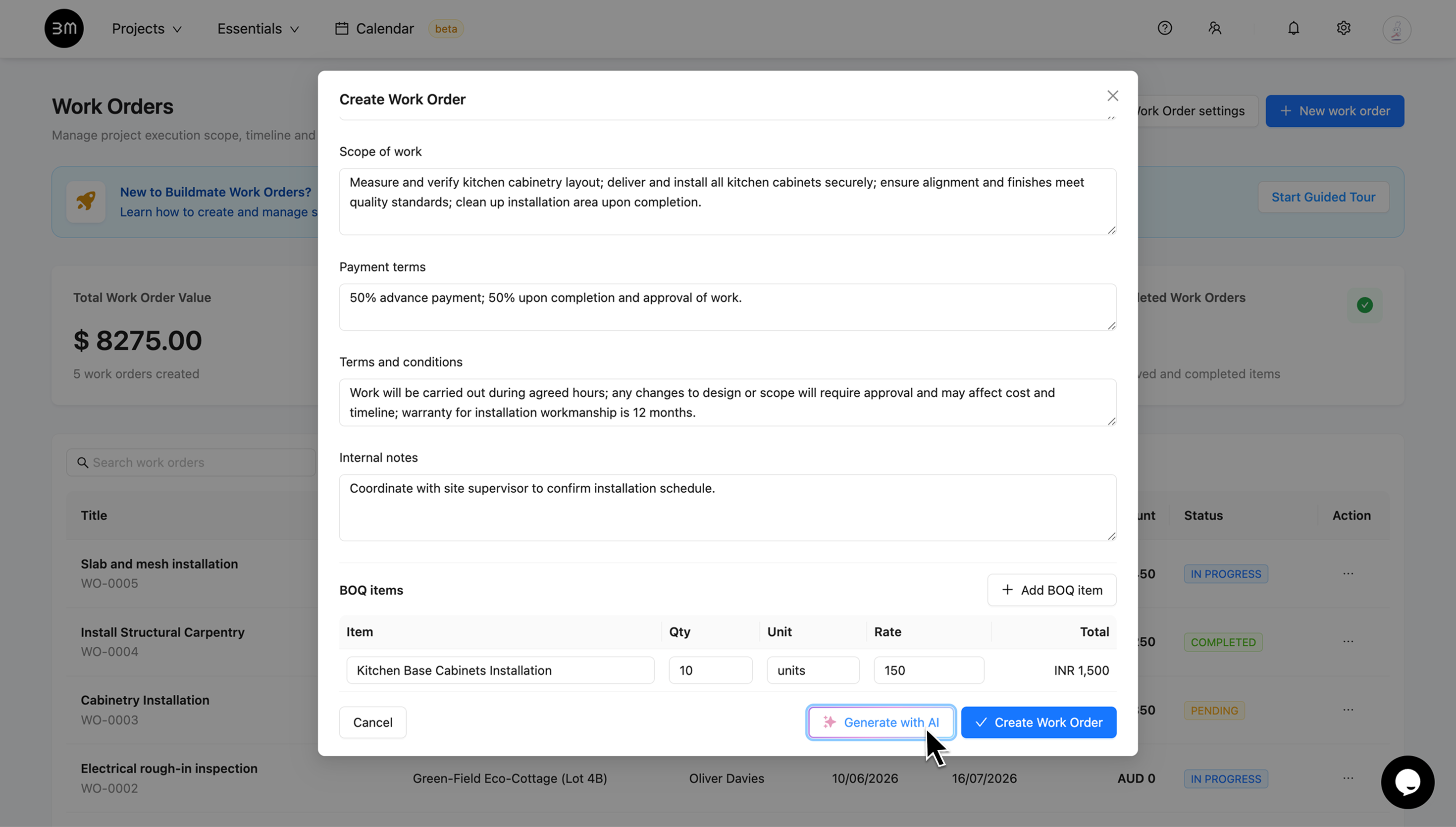
The goal is simple: get a strong draft in place quickly, then make the final adjustments your project needs.
Once all technical details and pricing line items are finalized, click Create Work Order button to save your document.
4. View Details and Apply Edits
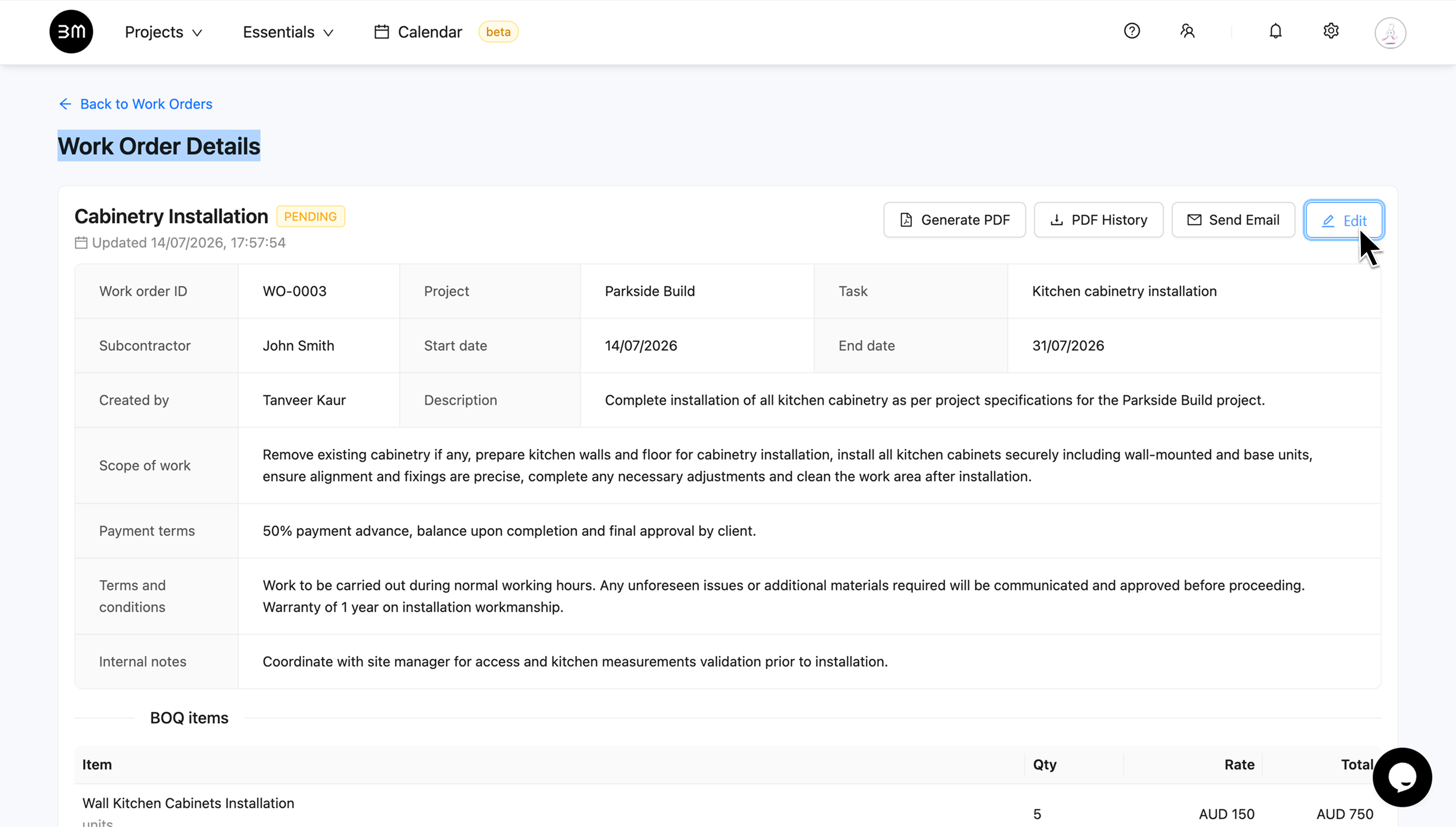
Once saved, click any entry in your main listing to open its full detail pane. From here, you can review the complete contract specifications, check progress status, and make updates:
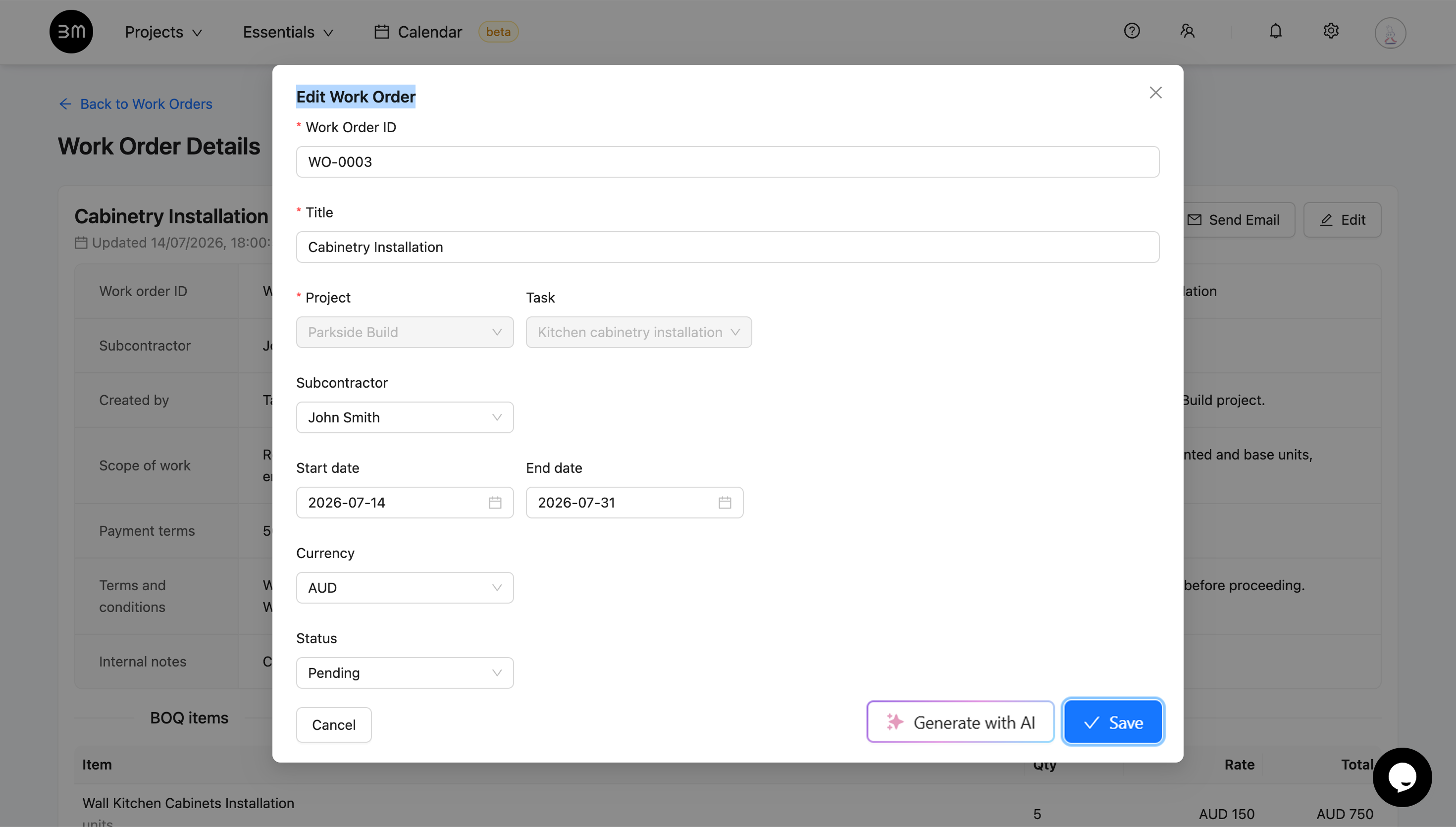
- Click the
Edit buttonat the top right to adjust anything in the existing work order - Change timelines, modify currency, or refine BOQ items if project variables change.
5. Review and Send to Client
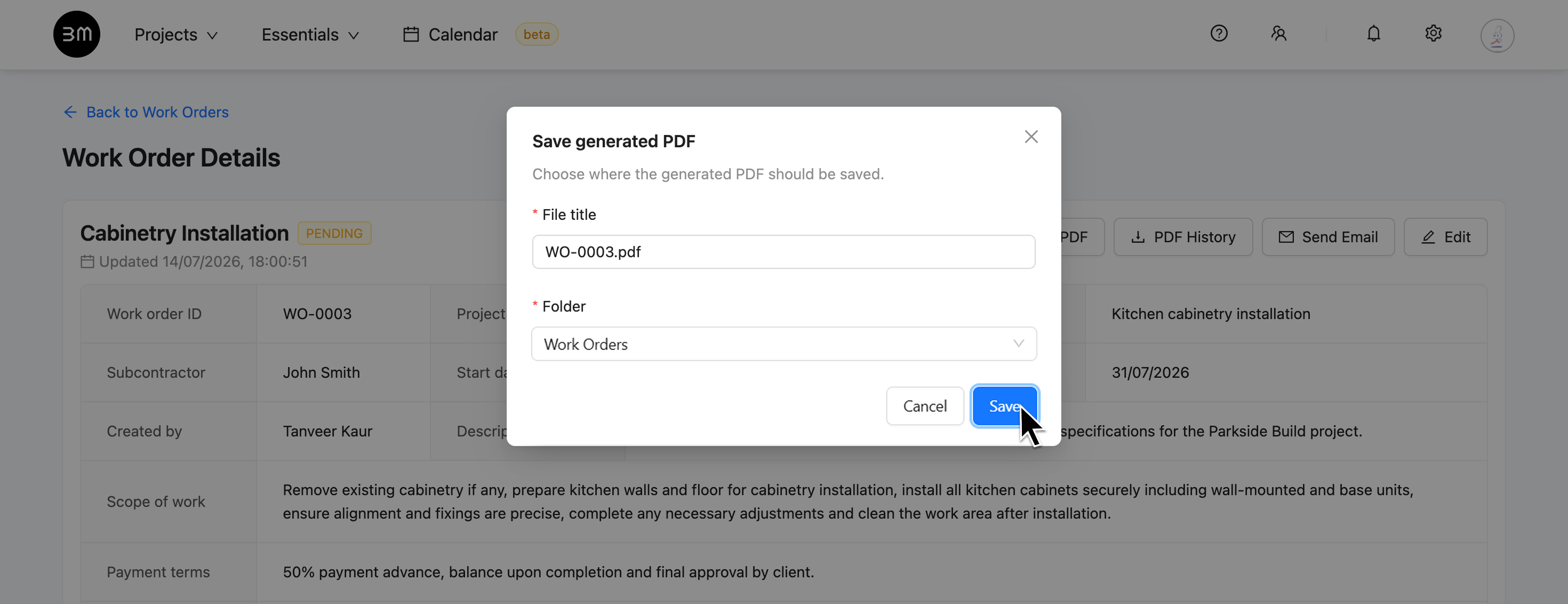
- Generate PDF: Finalize your documentation by clicking
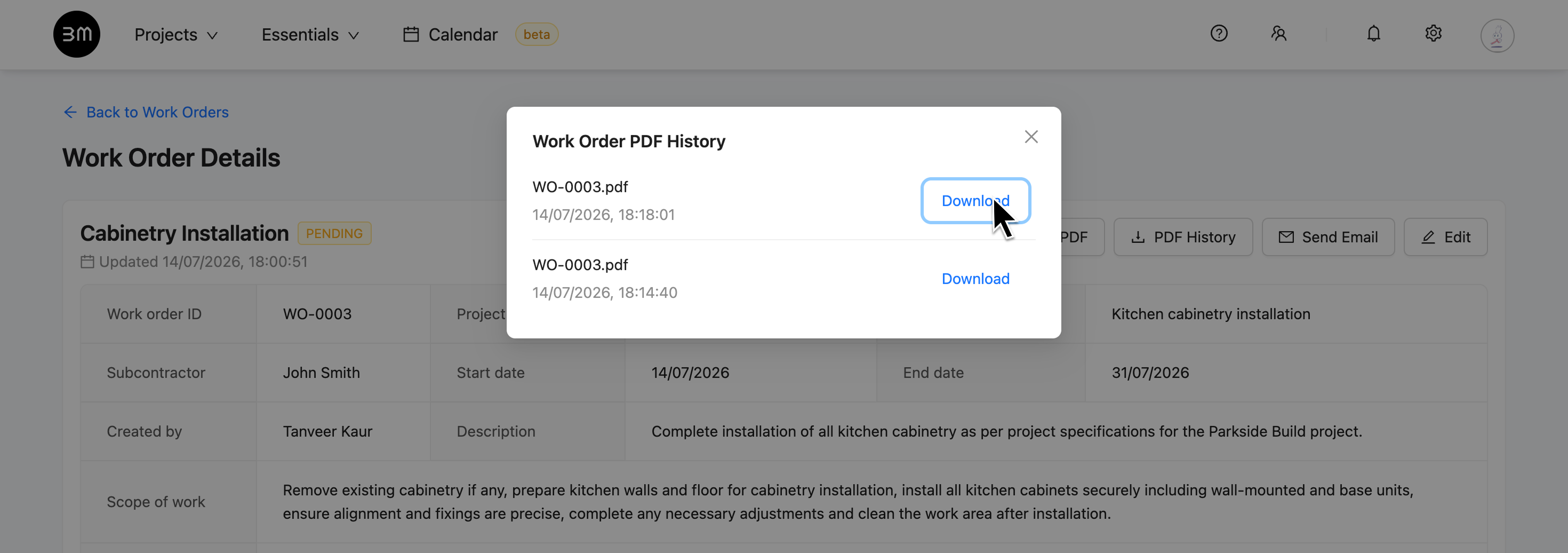
Generate PDF. A prompt will appear allowing you to name and save the file directly in your project’s directory folder. - Review History: Need to check previous terms? Click
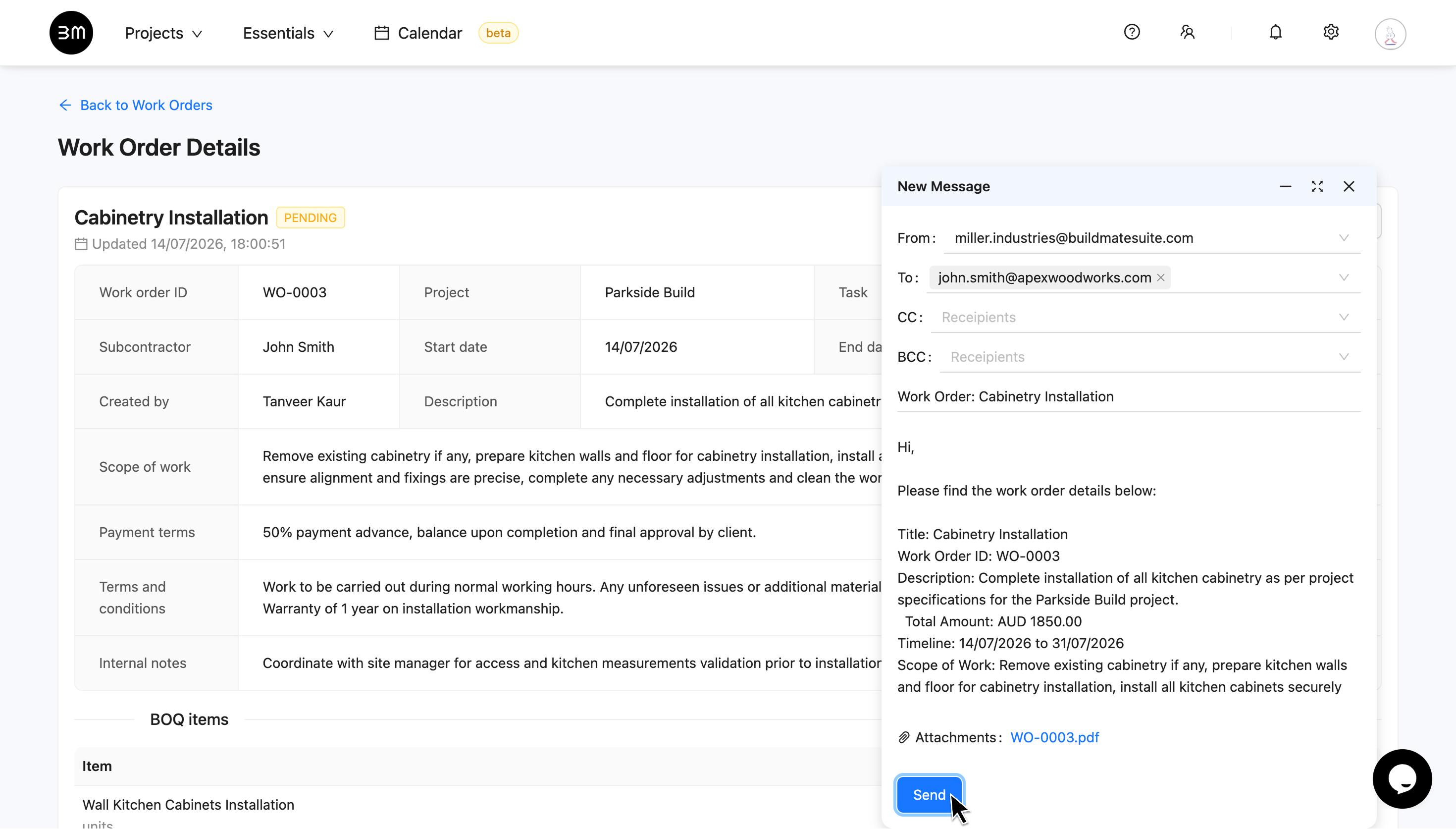
PDF Historyto open a chronological archive log of every document version ever generated for that assignment, allowing you to download past copies instantly. - Emailing: Once the document is generated, click
Send Emailto open the email modal pre-populated with recipient fields (if sub-contractor already assigned), specifications, and the generated PDF attached automatically.
6. Track and Manage Status
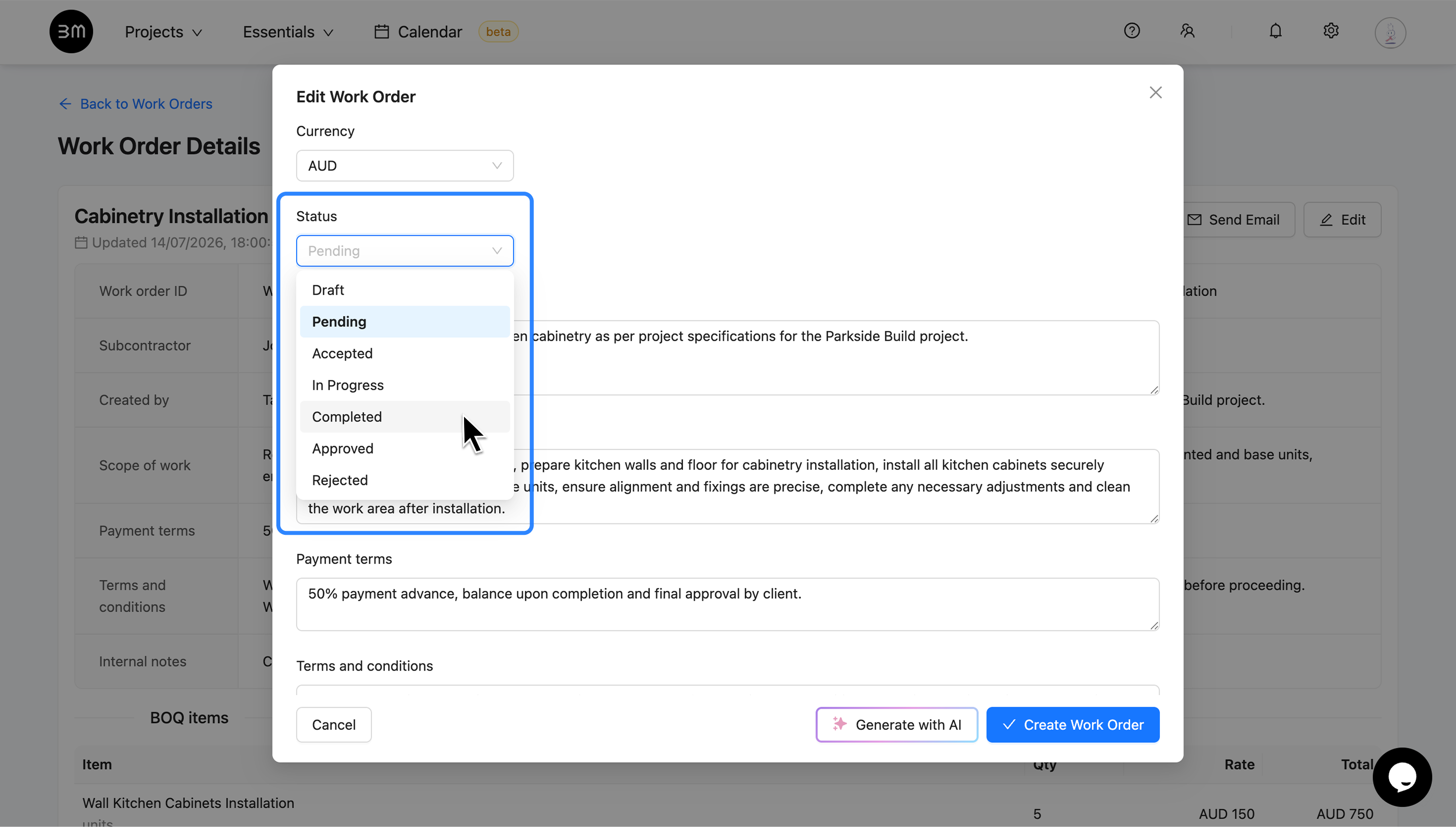
You can use the status field to manage a Work Order/s lifecycle - DRAFT, PENDING, ACCEPTED, IN PROGRESS, COMPLETED, APPROVED, REJECTED
- Move a Work Order from draft to In progress once physical execution begins.
- Update the status again when it has been accepted or completed.
- Keep an eye on the dashboard (Work Order Metrics) to see which orders still need attention.
This gives your team a shared source of truth for subcontractor work, especially when multiple projects are running at the same time.
Thus, the combination of structure and AI support helps you move faster without losing control over quality. Now you can manage Work Orders in Buildmate with clearer approvals and a workflow that stays connected from task to execution.