
At Buildmate, we know that every construction business operates differently. That is why, we have introduced Project Settings directly to your dashboard — allowing you to easily customize your project naming conventions and organize data to fit your exact needs.
Here is a breakdown of how you can customize your workspace:
1. Access the Project Settings
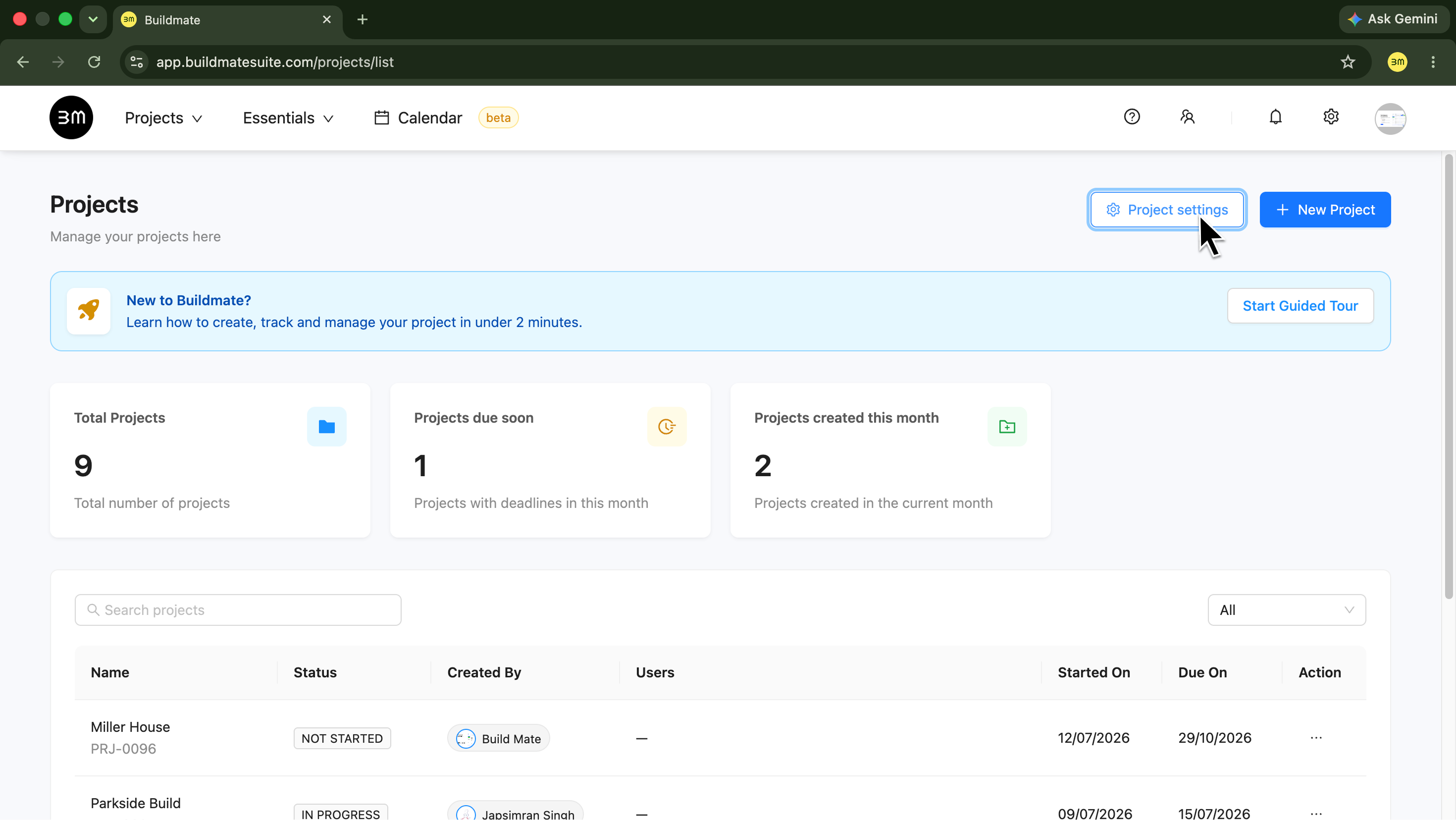
- Navigate to your main Projects dashboard and click the
Project settingsbutton located at the top right, next to the + New Project button. - This is your customization command center for managing project prefixes, default currency and list column views.
If you manage multiple projects, it is a good idea to set these values early so every new project starts with the same structure.
2. Set a Project ID Prefix
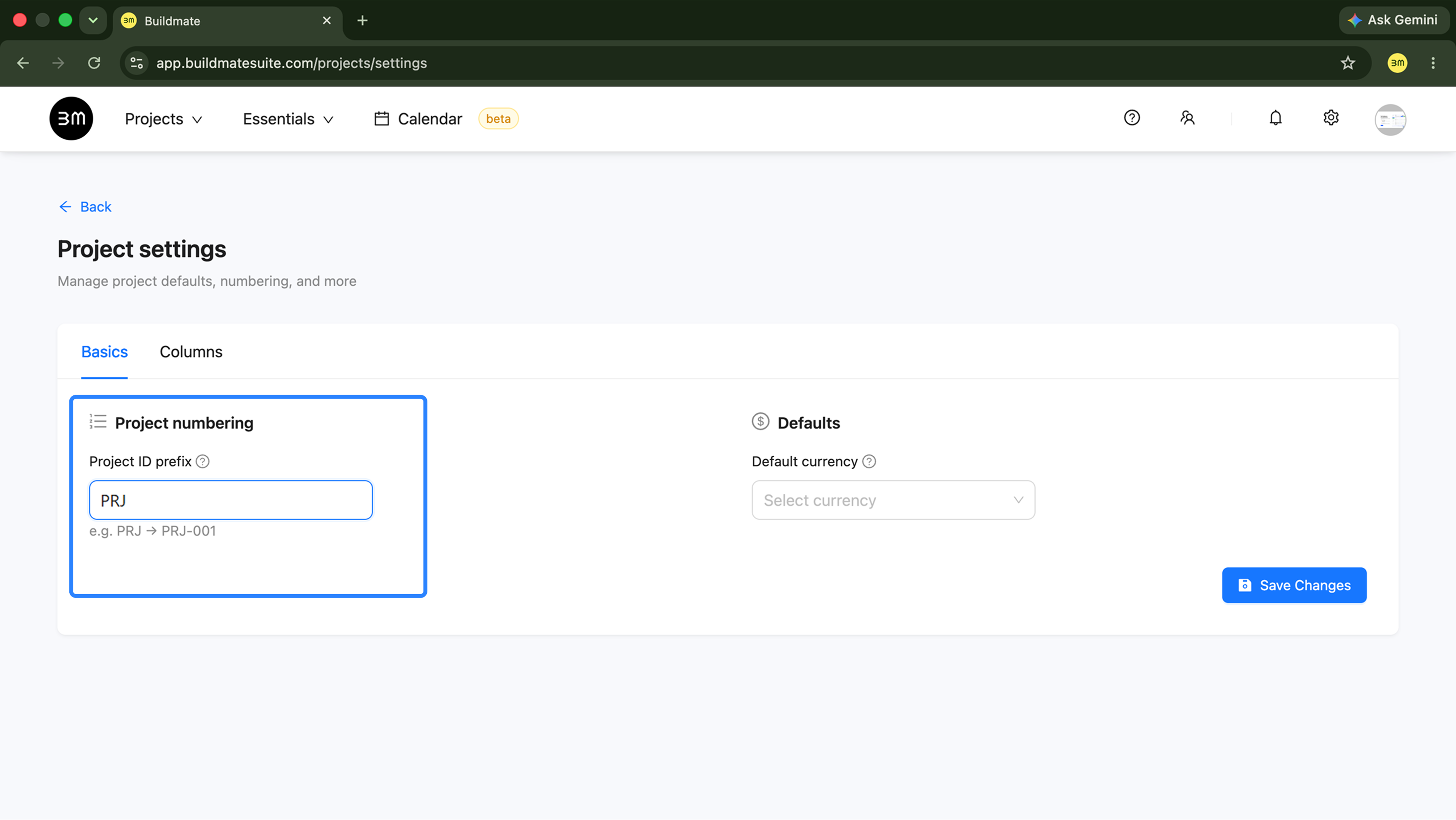
Inside the Basics tab under the Project numbering section, you will find the Project ID prefix field.
- Enter a short prefix that should appear before your project number. A common example is PRJ.
- Buildmate will auto-fill the sequence for newly created projects accordingly (e.g., PRJ-001).
3. Choose the Default Currency
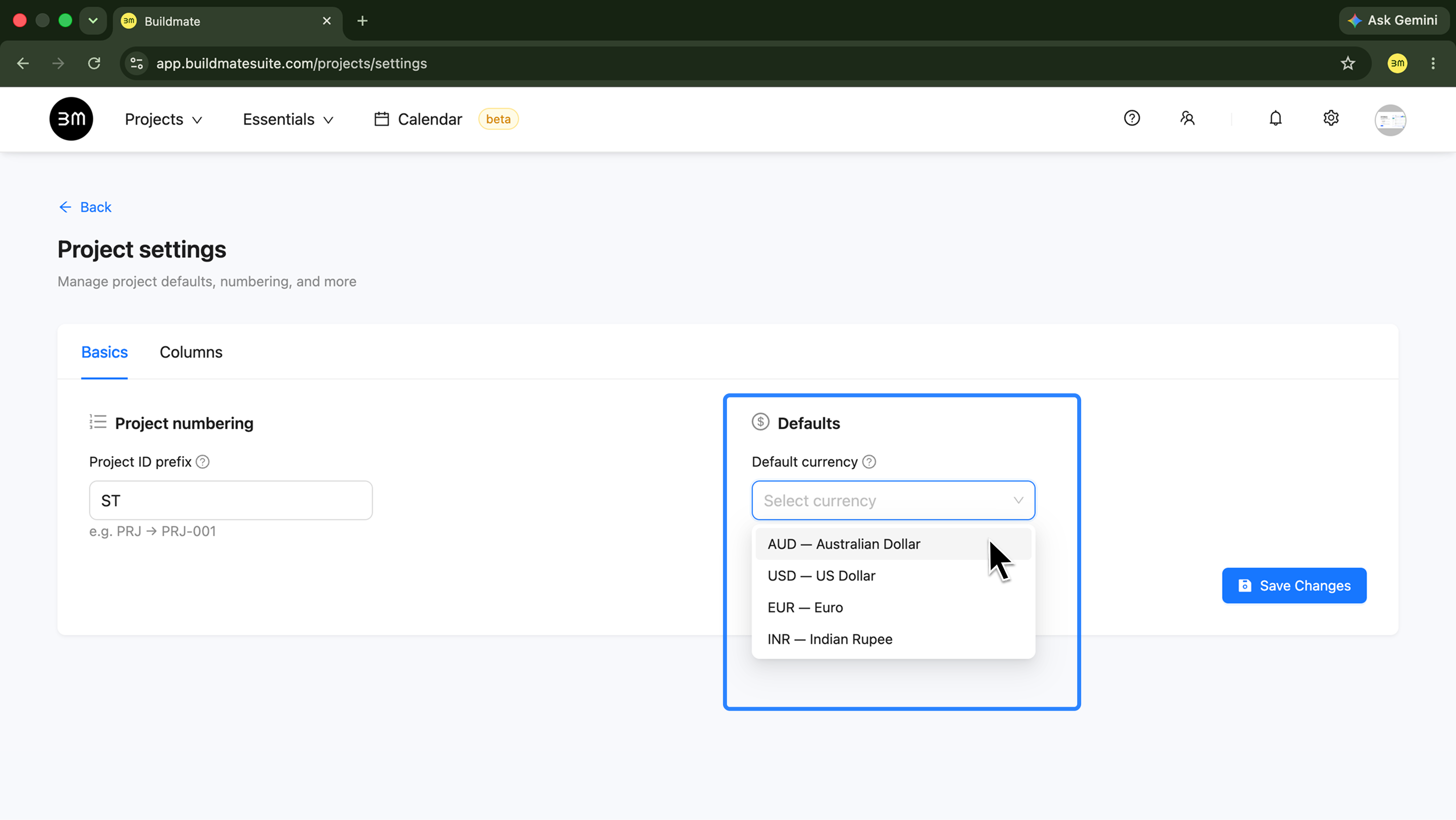
In the Defaults section, use Default currency to set the currency applied to new projects.
- Pick the currency your team uses most often, such as AUD, USD, EUR, or INR.
- The selected currency becomes the default for newly created projects.
Once your prefix and currency are set the way you want them, click Save Changes.
4. Customize Project List Columns
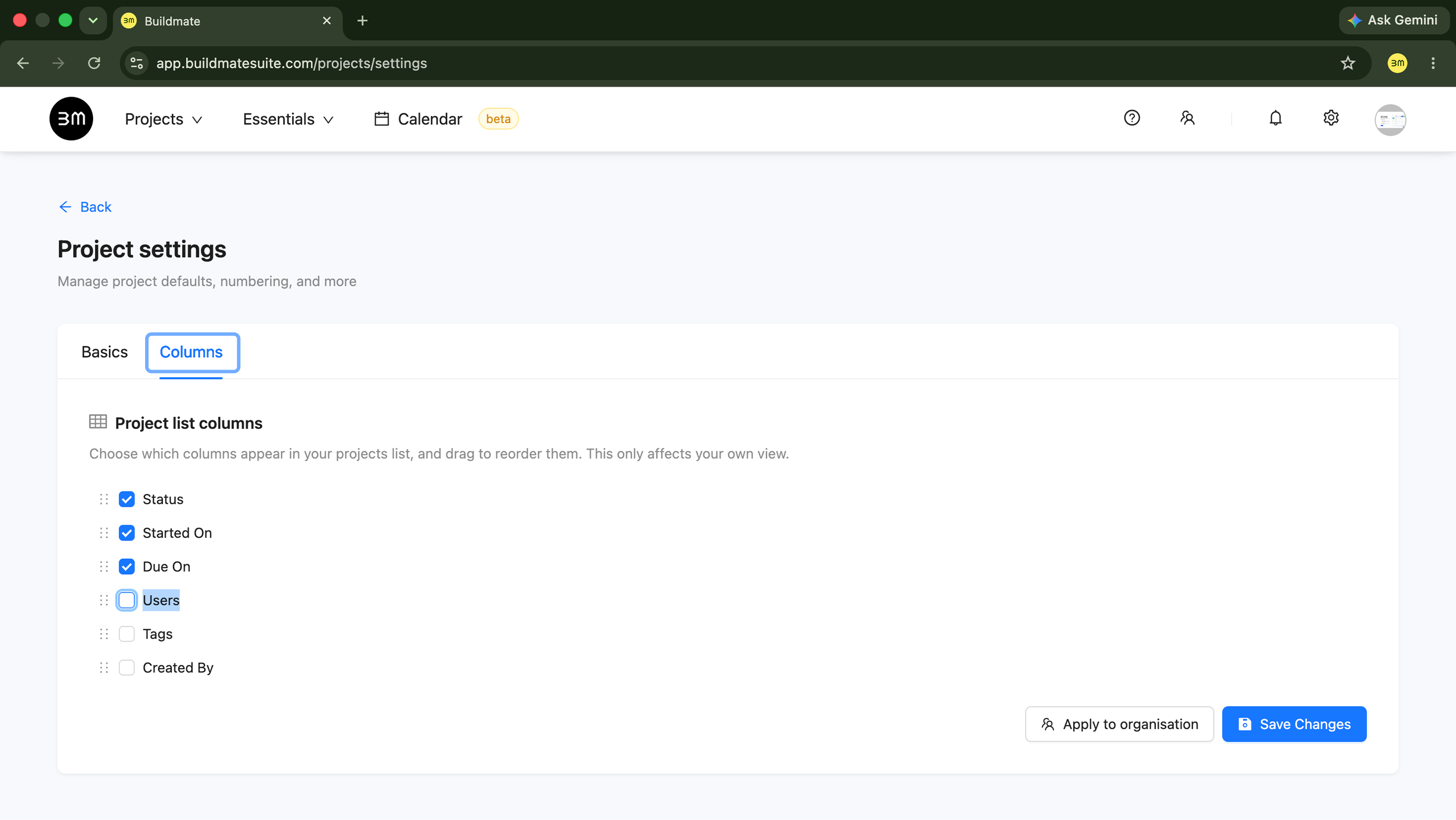
As your list of projects grows, your dashboard should only display the information that is most relevant to your daily operations. You can also control which columns appear in the Projects list and their ordering.
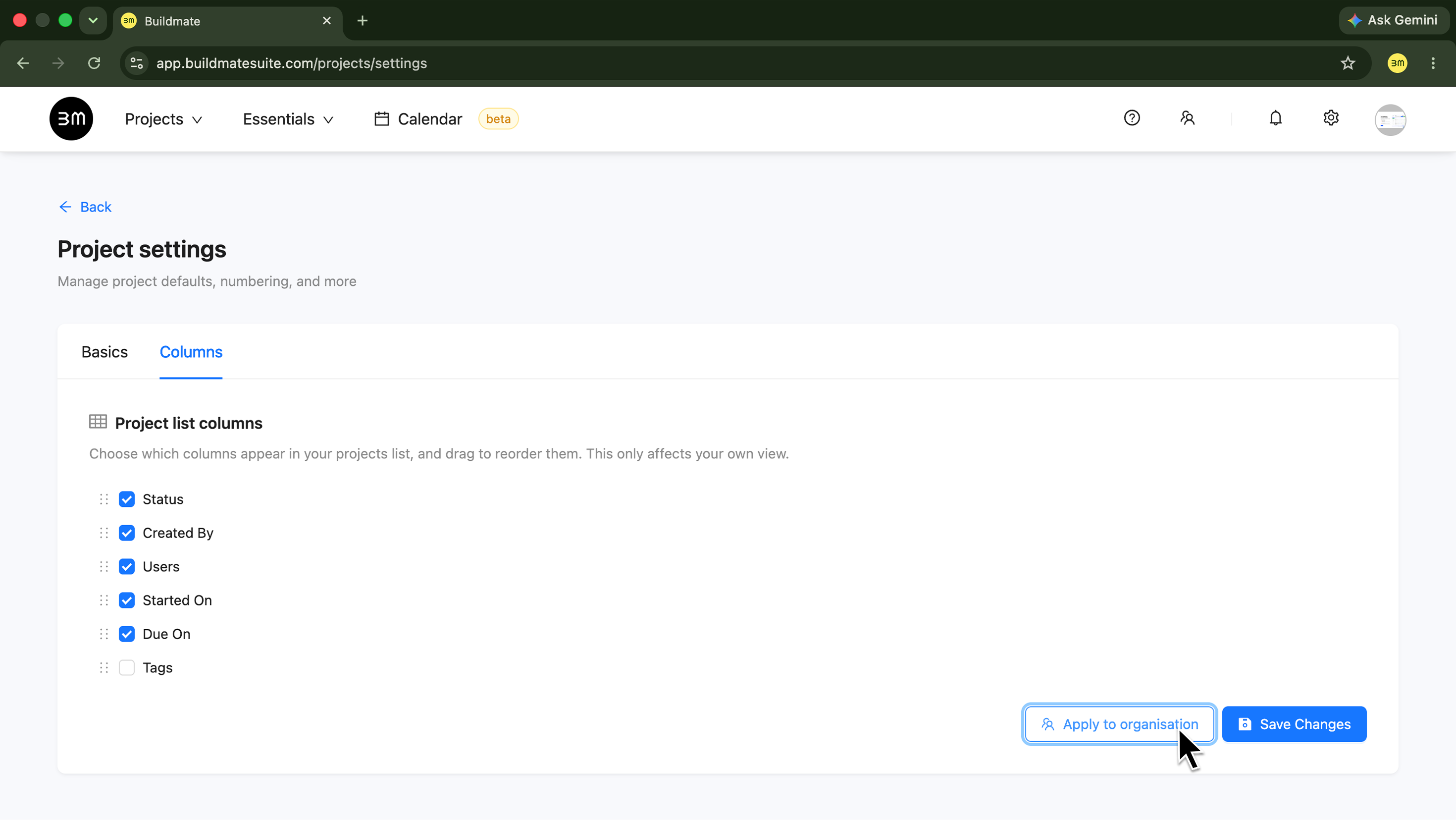
- Switch over to the
Columnstab in Project Settings. - Toggle Column Visibility: Use the checkboxes to show or hide optional columns.
- Reordering: Drag the handles to reorder the visible columns to your preference.
- The Name column stays pinned. The available optional columns include Status, Tags, Created By, Users, Started On, and Due On.
Tip:If you remove a column and later need it again, simply re-enable it from the same project settings.
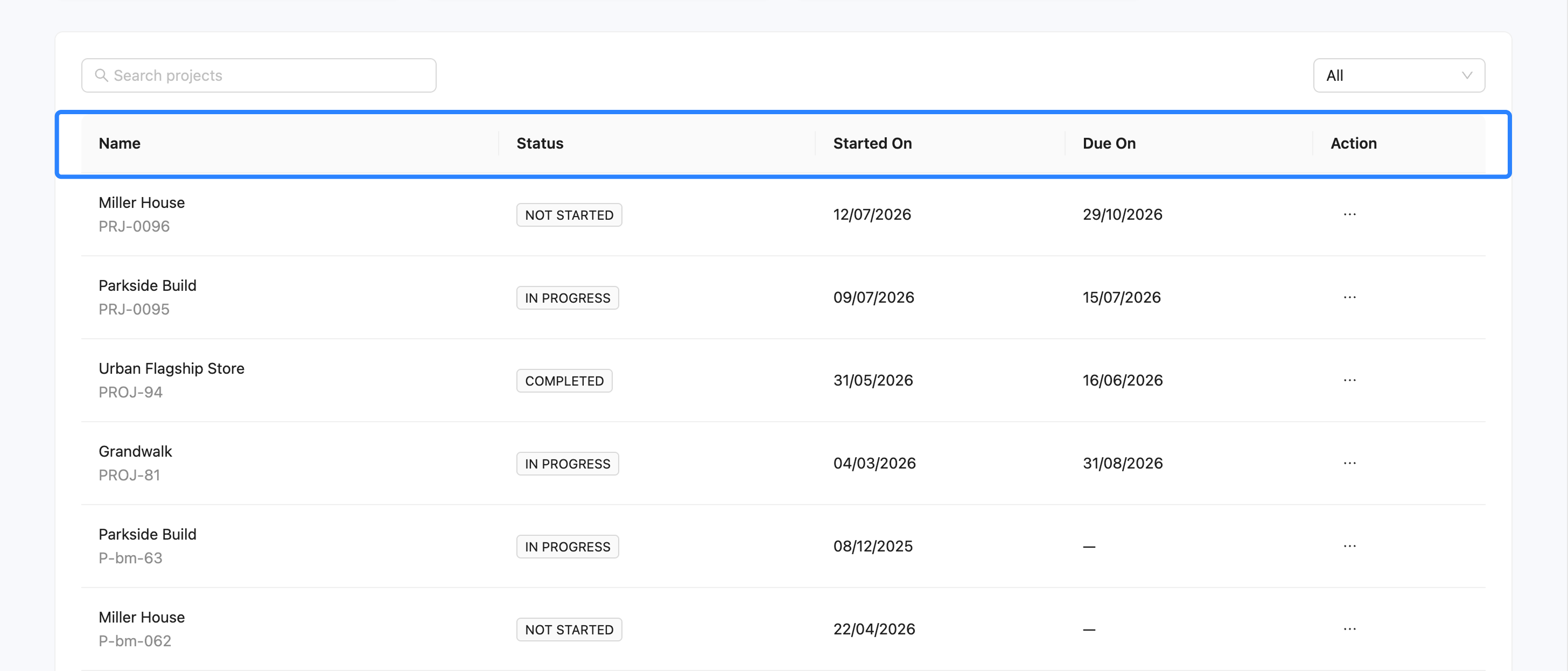
4. Team Standardization
By default, the changes you make to the columns will only affect your personal view. However, if you are standardizing workflows for your company, you can use the Apply to organisation button to push your preferred column layout to all users in your organisation.
That’s it. With a few quick changes, you can make Buildmate feel much more aligned with your team’s workflow, reporting style, and naming conventions.