
When a project already has the right structure, it makes sense to reuse it. Buildmate lets you turn an existing project into a reusable template so your team can launch similar jobs with the same setup, task flow, and naming pattern.
That means less repetitive setup work and more consistency across projects that follow the same delivery model.
1. Convert an Existing Project → Template
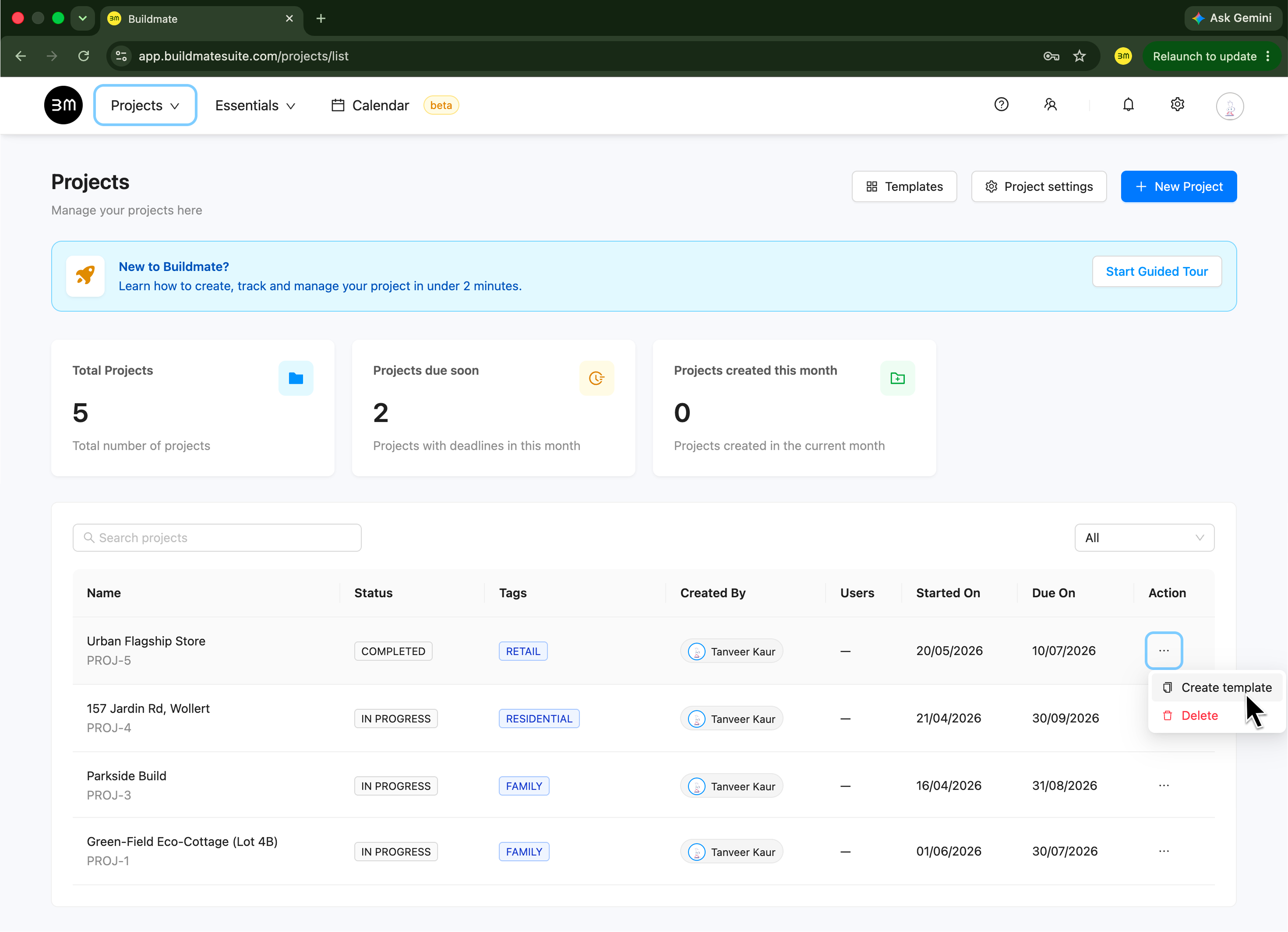
- Navigate to Projects in the top navigation bar to access your main projects list.
- Locate the project you wish to replicate in the project listing table.
- Click the
...(Action menu) at the far right of the project row. - Select
Create templatefrom the dropdown menu. Buildmate will automatically process the project’s structure, task list, and phases into a editable custom template.
2. Locate your Templates
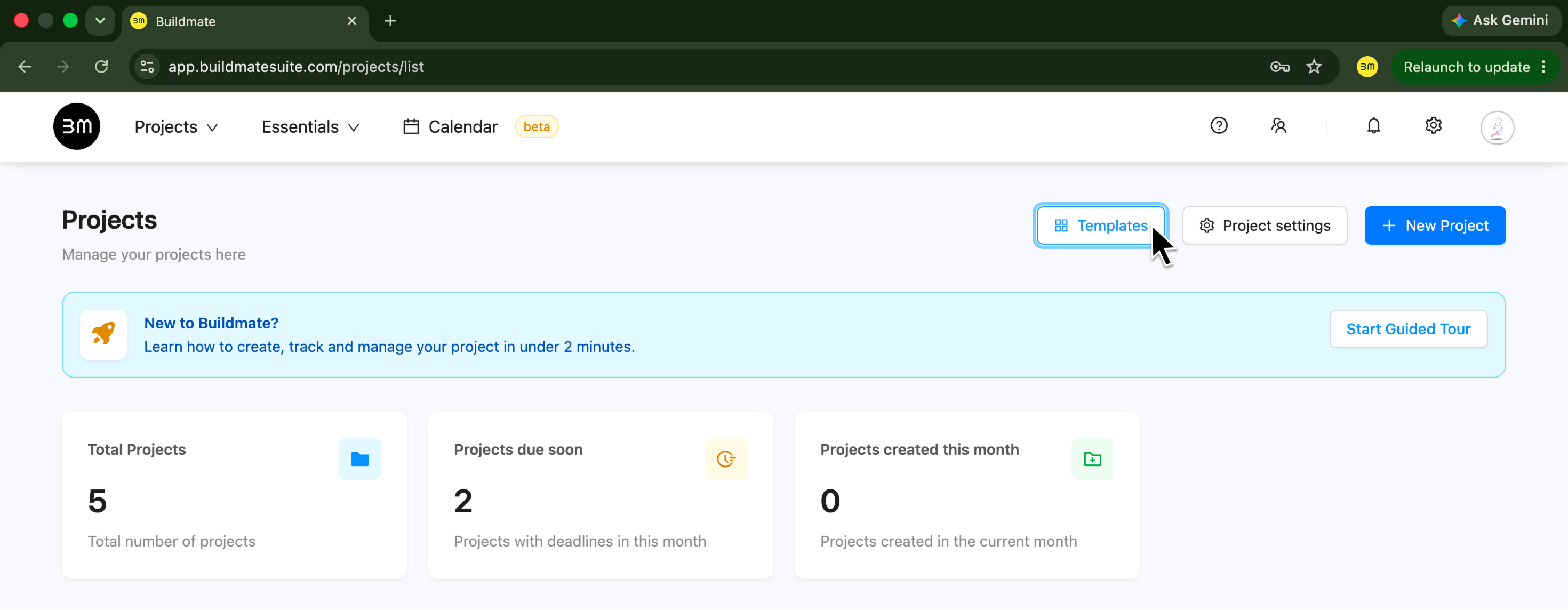
- Click the
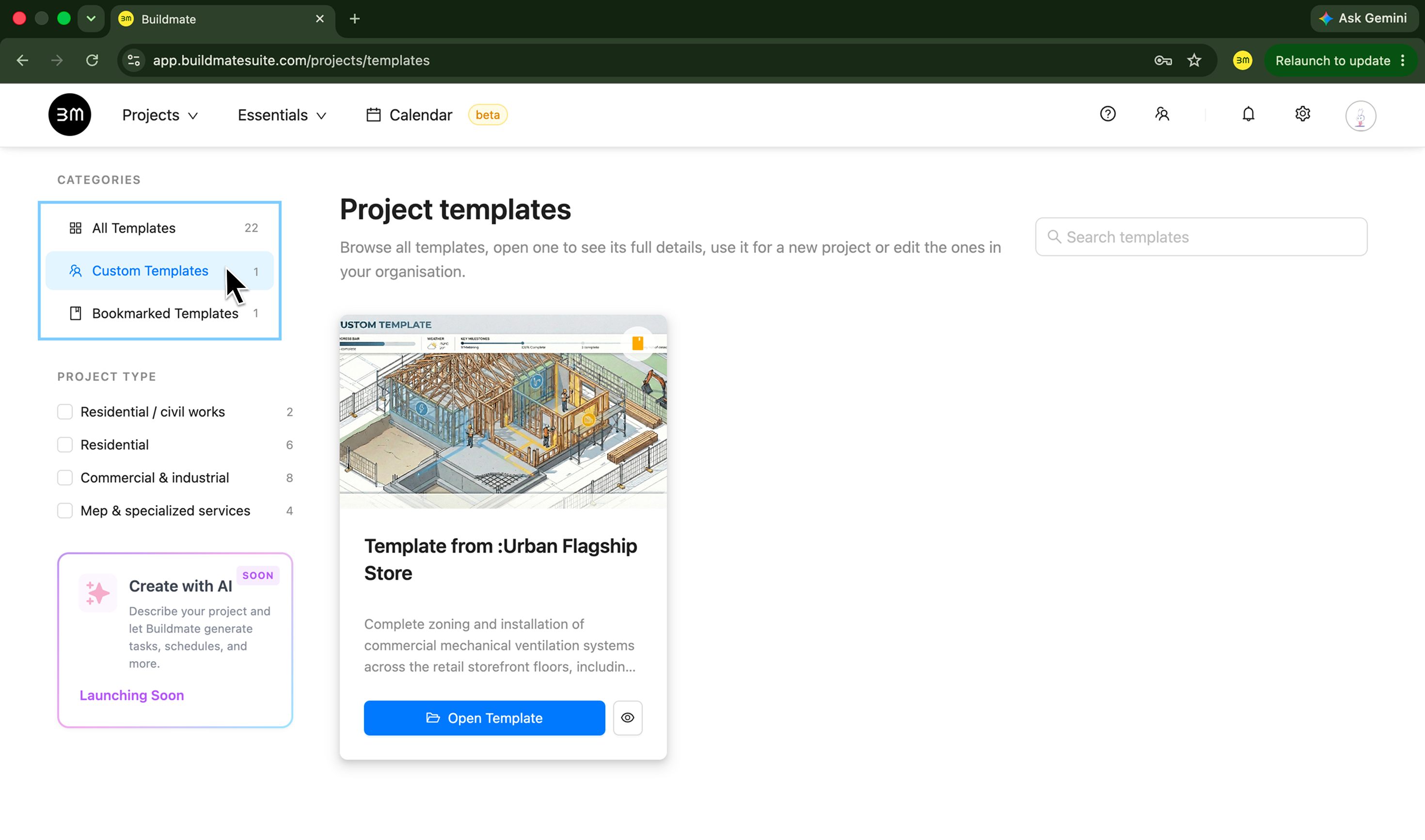
Templatesbutton located at the top right of the Projects dashboard (next to Project settings and + New Project). - In the left sidebar under Categories, select
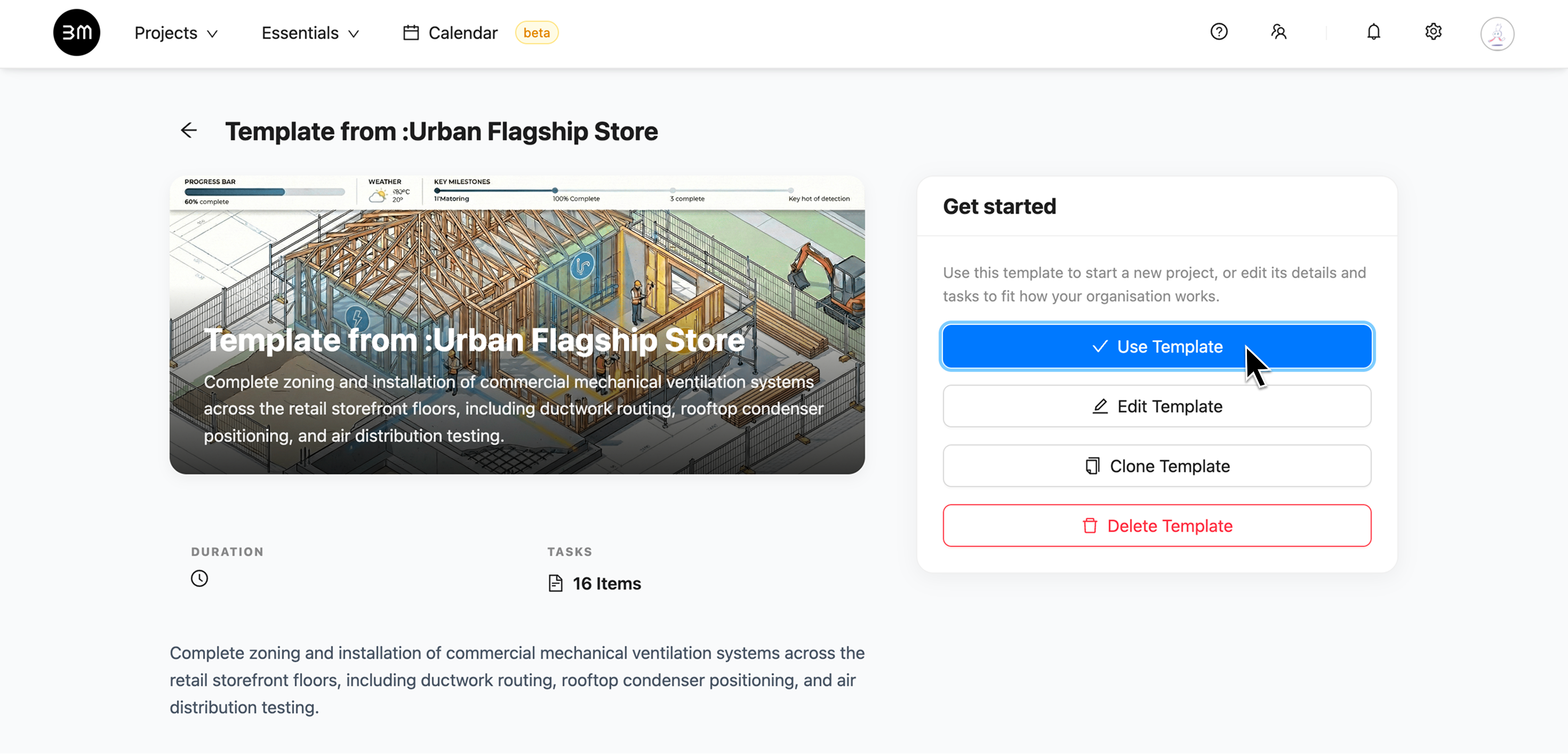
Custom Templates. - Your generated template will appear with a default title (e.g., Template from: Urban Flagship Store).
3. Review, Edit, and Save Workflow Adjustments
Before saving, review the template carefully and make sure it is ready to reuse across future jobs:
- Click
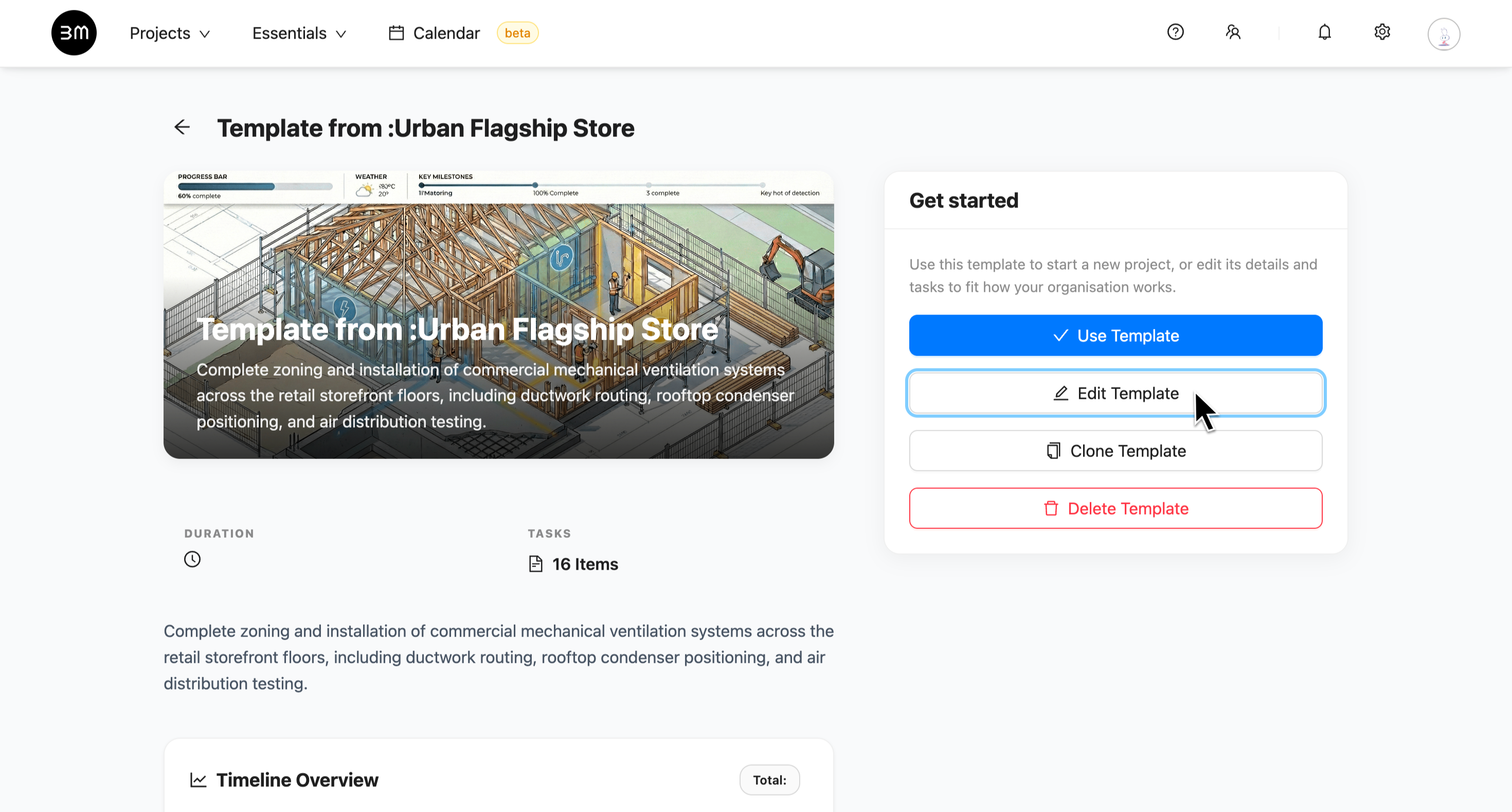
Open Templateon the template card to view its overview pane. - Click
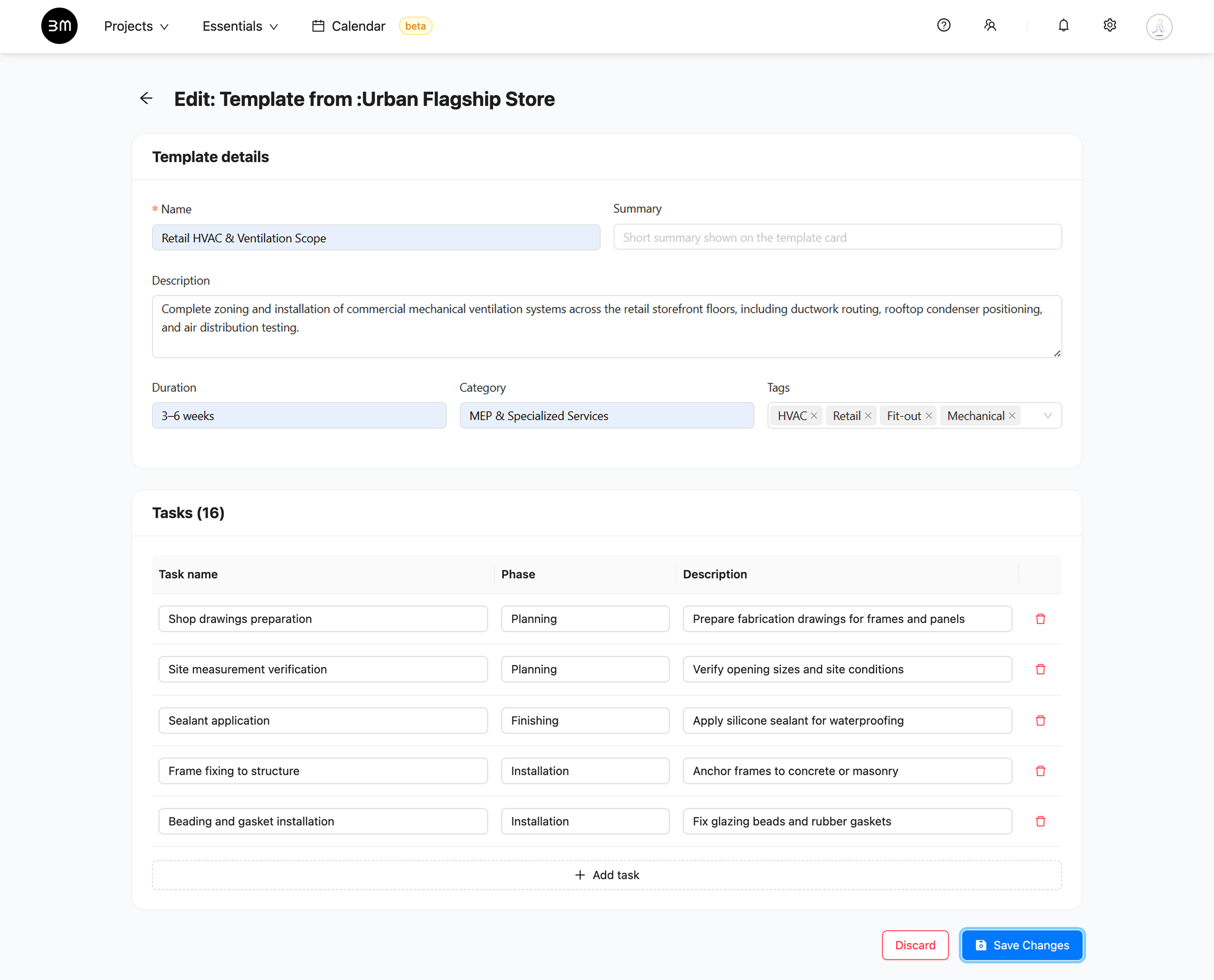
Edit Templateto customize the structure:- Template Details: Update the Name, Summary, Description, Duration, Category, and Tags.
- Task List: Modify existing Task names, assign Phases (e.g., Planning, Fabrication, Site Preparation, Installation, Finishing, Quality Check, Completion), and refine task Descriptions.
- Add or Remove Tasks: Delete a task, or click
+ Add taskto introduce new steps.
- Click
Save Changesat the bottom right to finalize your custom template.
4. Ready to roll
Once your template is ready, you can use it as the starting point for future projects without rebuilding the same structure every time.
If you want to see how that template is used when creating a project, read Create Project using Template. For a more detailed article on Project Templates, read Project Templates in Buildmate.