
What are Project Templates?
Project templates are one of the quickest ways to standardize repeatable work in Buildmate. Instead of rebuilding the same task structure, project settings, and starting pattern every time, you can turn best practices into repeatable blueprints for reuse. This is useful for teams that deliver similar builds, run recurring internal workflows, or want most projects to start with the same baseline structure.
If you want the step-by-step flow for creating a template from an existing project, start with How to create a Project Template from an Existing Project.
Where to Find Templates
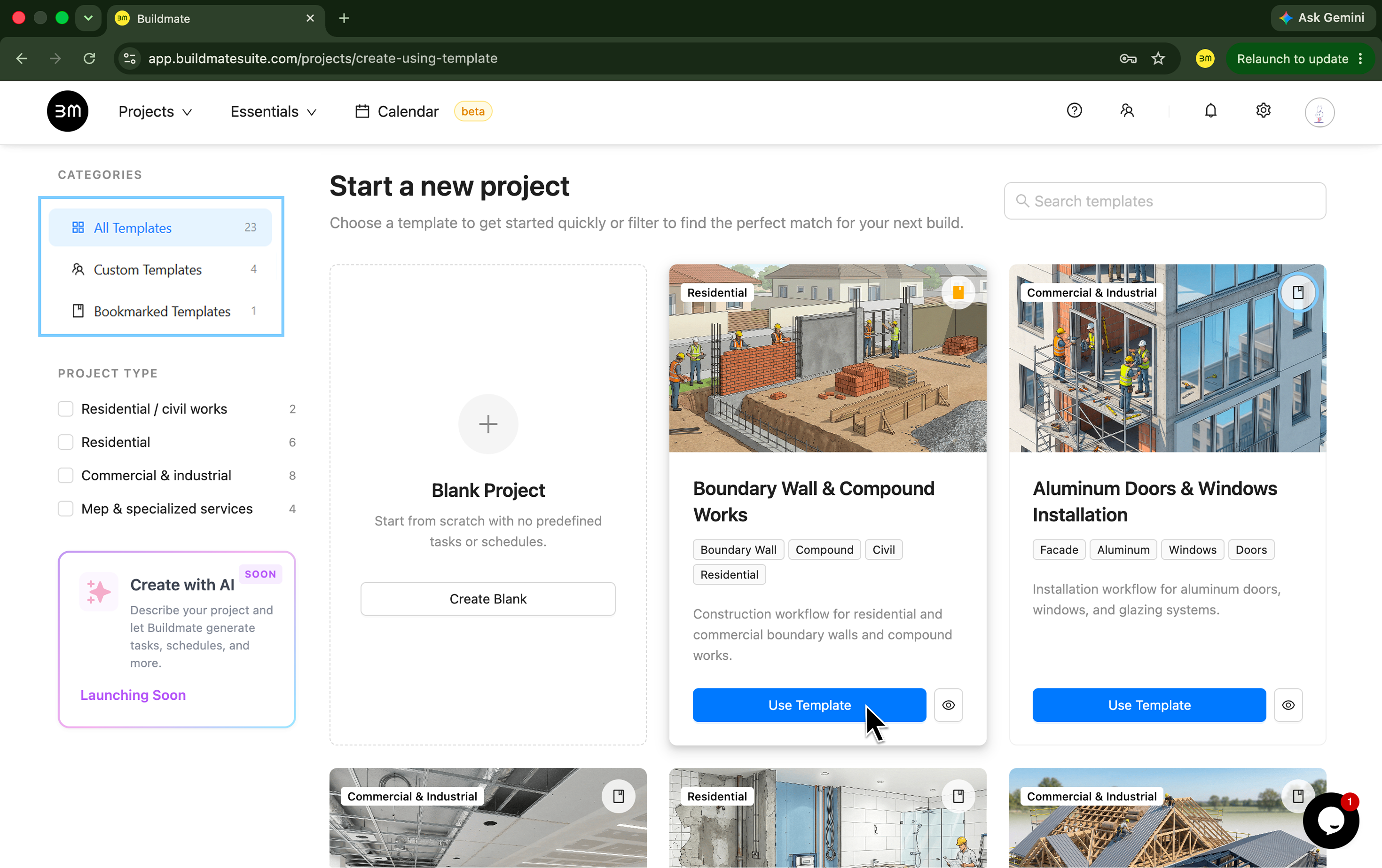
In Buildmate, templates live inside the Project templates area, where you can browse public Buildmate templates as well as templates created by your organisation.
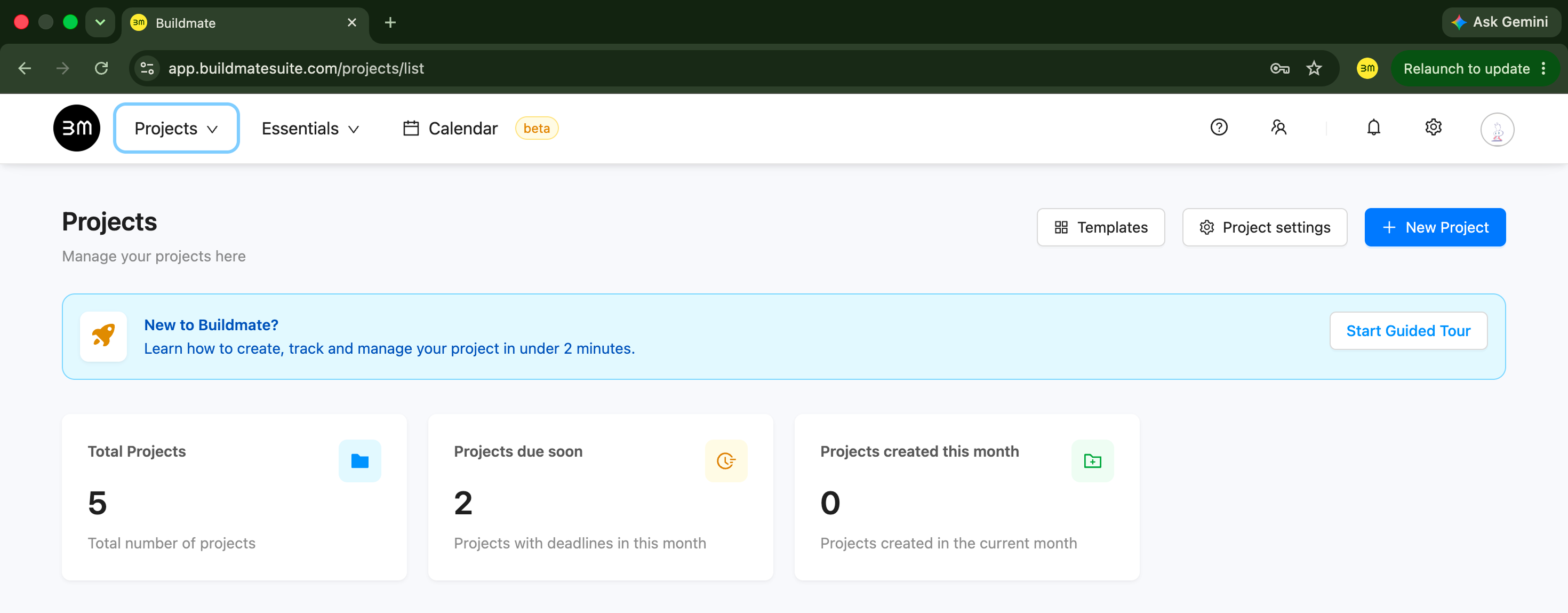
- Open the Projects module from the main menu.
- Click
Templatesbutton on the right. - Browse templates from the main grid, use the sidebar filters, or search for a specific template.
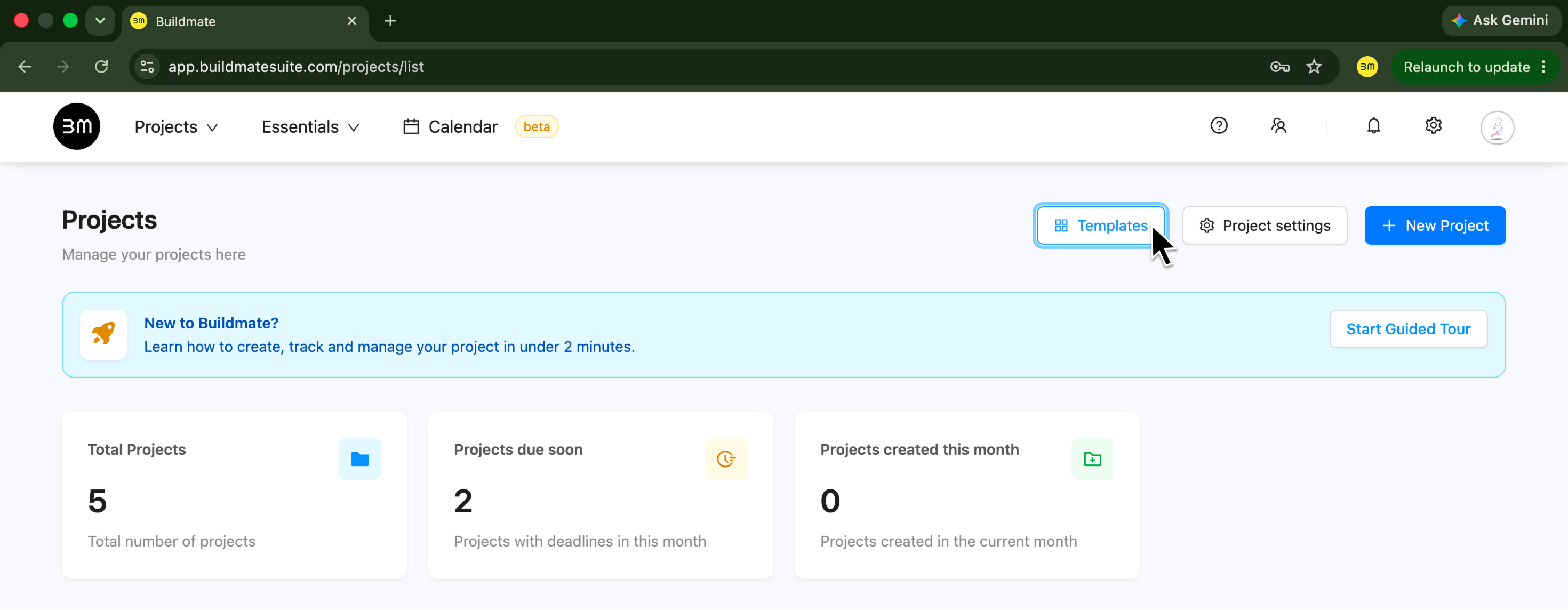
The left sidebar organizes templates into distinct operational categories:
- All Templates: A unified view of all default Buildmate templates + Custom templates.
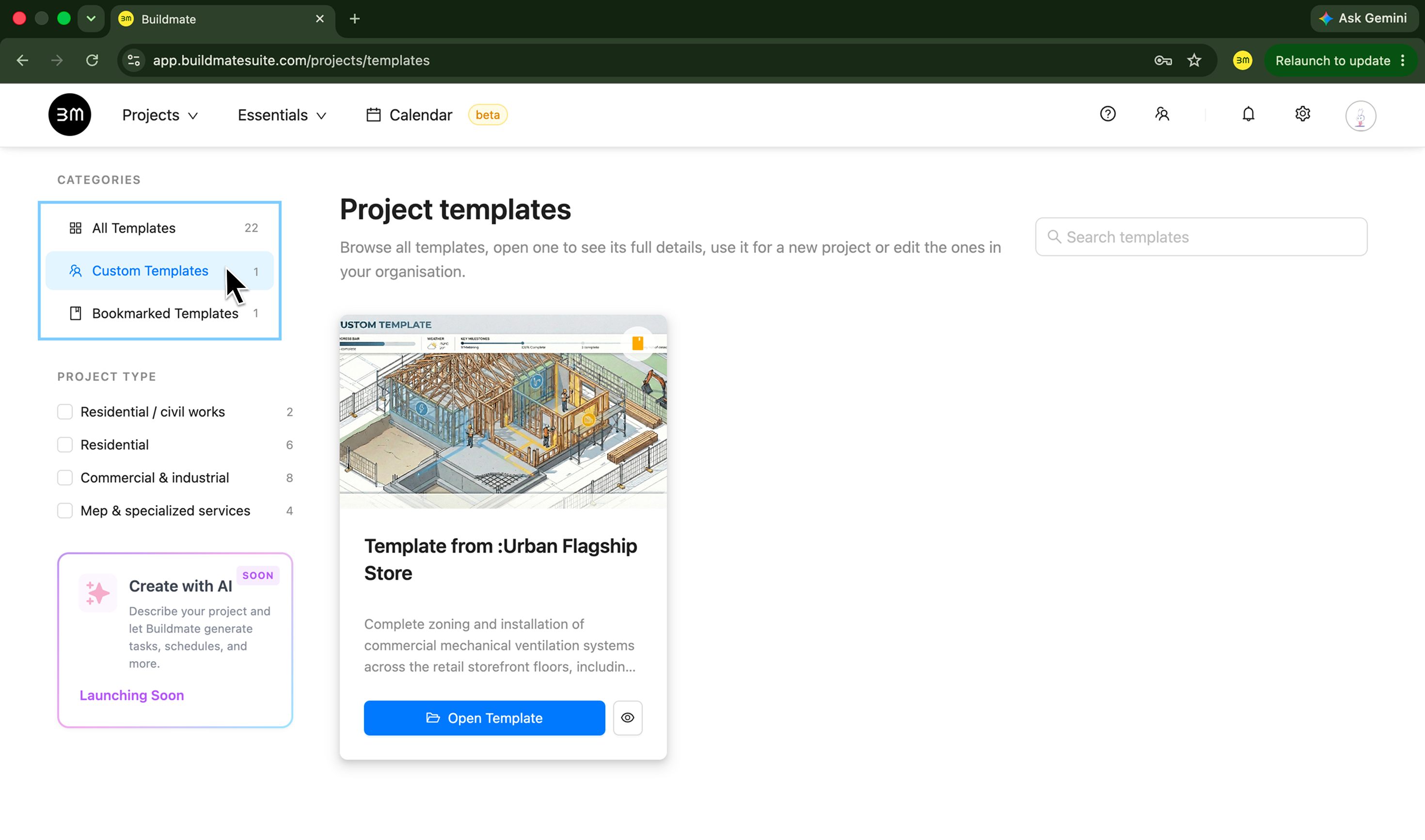
- Custom Templates: A dedicated repository for templates owned by your organisation -
Templates from existing projectsorCloned builds. - Bookmarked Templates: Collection of templates you have saved for quick access.
Tip:Click the Bookmark Icon on a template so you can get back to it later from your bookmarked list. - Filter by Project Type: Search frameworks by category - Residential/civil works, Residential, Commercial & industrial, and MEP & specialized services.
Create a Template from an Existing Project
If you already have a project that works well, you can turn it into a reusable template in seconds instead of building a new one from scratch.
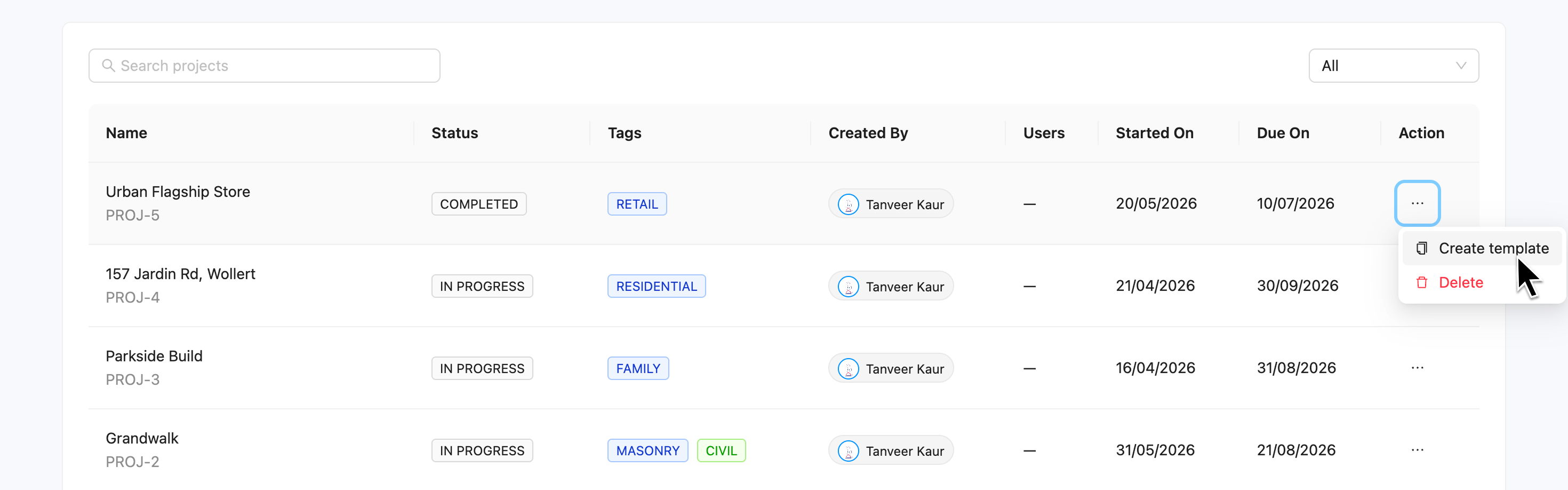
- Navigate to Projects module.
- Locate the project you wish to replicate from the Projects list.
- Use the row
...(Actions menu) and chooseCreate template. - Your generated template will appear with a default title (e.g., Template from: Urban Flagship Store).
Buildmate will automatically process the project’s structure, task list, and phases into a editable custom template. For the step-by-step version of that flow, see Create a Project Template from an Existing Project.
Use a Template to Start a New Project
Once a template is ready, you can use it to launch a new project in just a few clicks.
- Start a
+ New projectfrom the Projects module. - Select the Choose Template card in the project creation flow.
- Pick the template that best matches your work (Buildmate template or your Custom template).
- Review the setup, confirm your details, and create the project.
For a detailed visual walkthrough on initializing builds via templates, refer to How to create a Project Using Template.
Open and Manage Templates
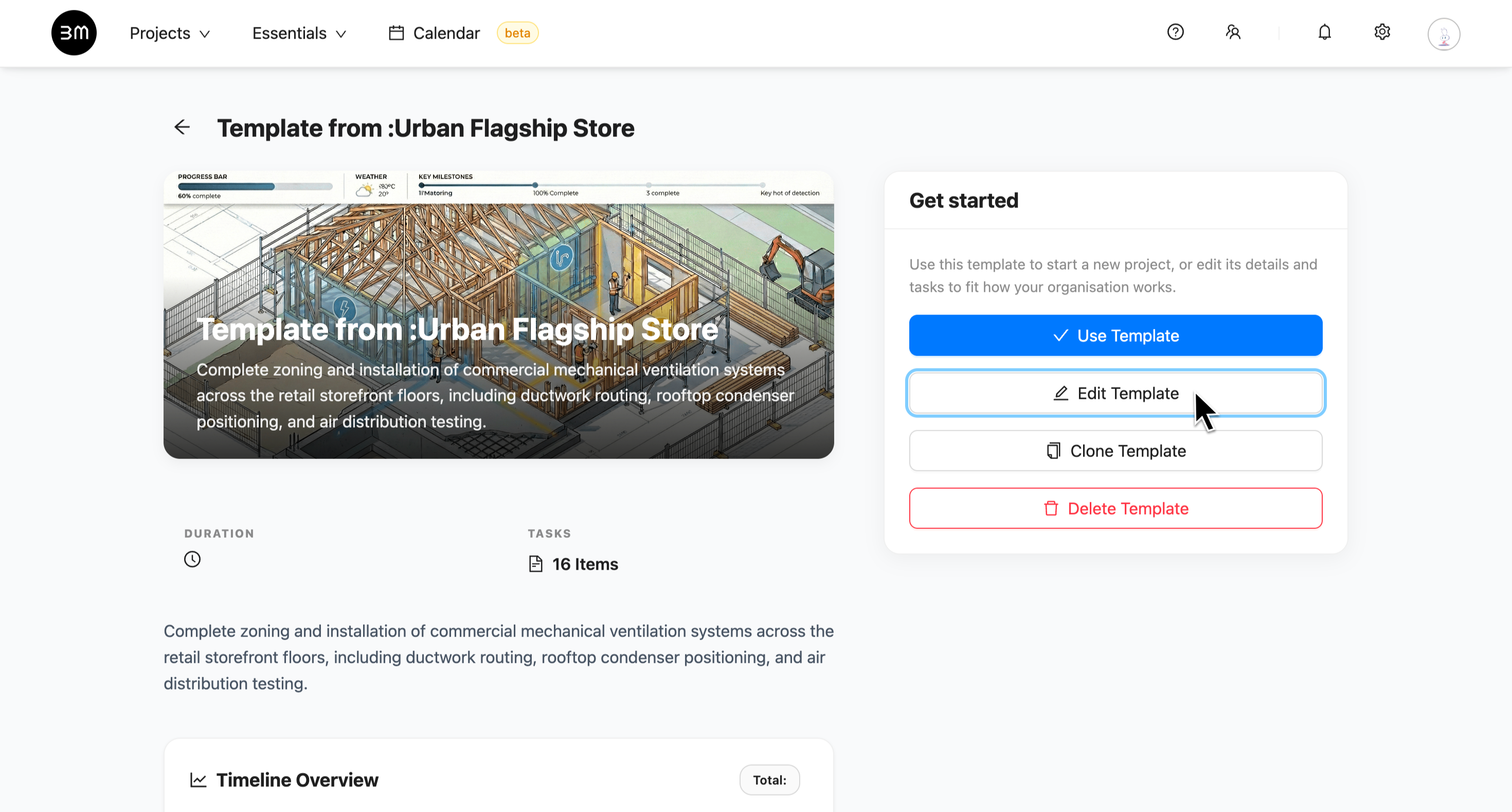
When you open a template from the detail page, Buildmate gives you a few different paths:
Use Templatestarts a new project from that template.Edit Templateis available for organisation templates to refine structural parameters when you have write access.- Template details: Update the Name, Description, set explicit duration baselines, assign tags, and define summaries for your field teams.
- Phase & Task Structure: Organize tasks line-by-line across project phases such as Site Preparation, Fabrication, Installation, and Quality Check. Add new task items, update description or remove redundant ones using the table controls.
Clone Template: When managing multi-tier projects (e.g., standard vs. high-spec builds), clickClone Template. This creates a duplicate copy (e.g., Copy of Template from Urban Flagship Store) that can be customized independently without altering the master template.
Note: Public Buildmate templates can be used, but they cannot be edited directly. Organisation templates can be maintained by the people who have the right permissions.
When to Use Templates
Project templates work best when the work repeats often and the structure matters.
- Use them for common project types that follow the same stage flow.
- Use them when you want to speed up project setup without losing consistency.
- Use them when your team needs a standard starting point that everyone understands.
There you go! Now you can easily start new project builds with Buildmate templates or your internal Custom templates.